
Appearance
Account and security
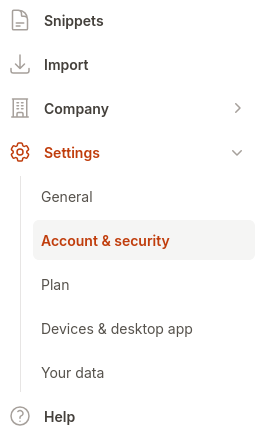
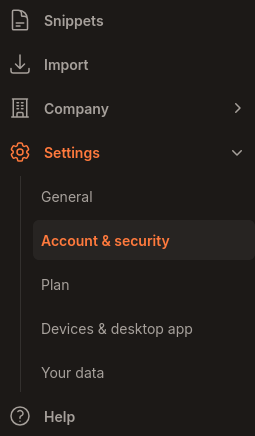
Everything about your account is under Settings in the menu on the left. Click it to show its pages: General (language, newsletter), Account & security, Plan, Devices & desktop app and Your data.
Language
Choose English or German. The setting applies to the web app and to the desktop app on all your computers.
Two-factor sign-in
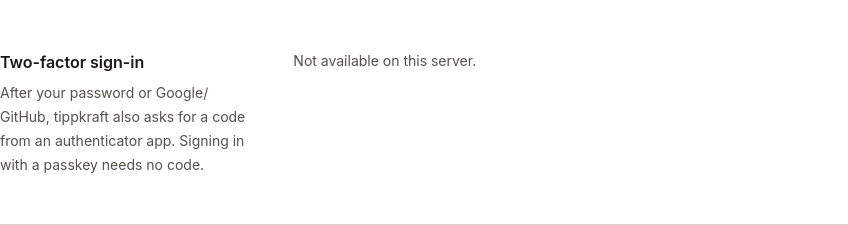
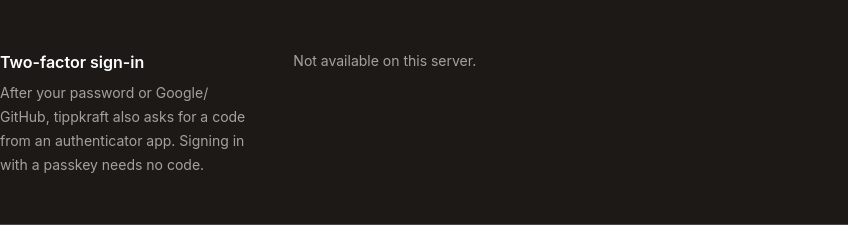
With two-factor sign-in, tippkraft asks for a six-digit code from an authenticator app on your phone after your password. Even someone who knows your password cannot get in without your phone.
- Install an authenticator app on your phone, for example the one from your phone's maker or any app that supports "TOTP".
- In tippkraft, click to set up two-factor sign-in and scan the QR code with the app.
- Enter the code the app shows.
- tippkraft shows you backup codes. Keep them somewhere safe: you need them if you lose your phone.
Passkeys
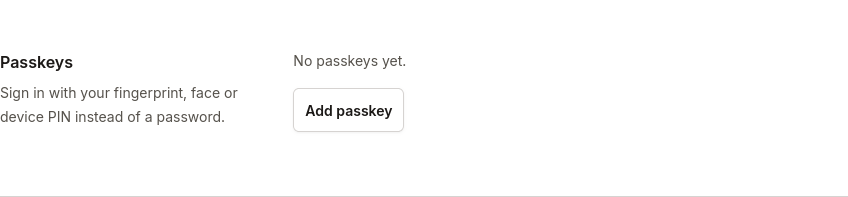
A passkey lets you sign in with your fingerprint, your face or your device PIN instead of a password. Click Add passkey and follow what your browser or phone asks.
Email address, password, Google and GitHub
You can change your email address and password in the settings. If you like, connect your Google or GitHub account to sign in with one click.
Connected computers and browsers
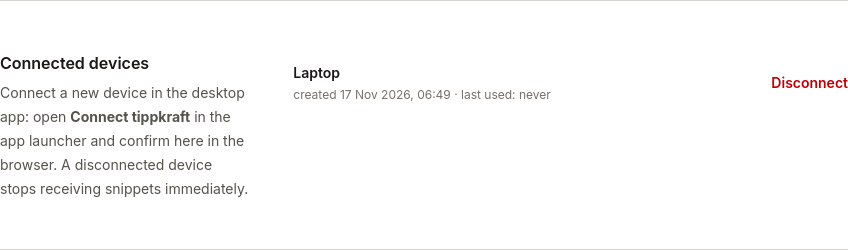
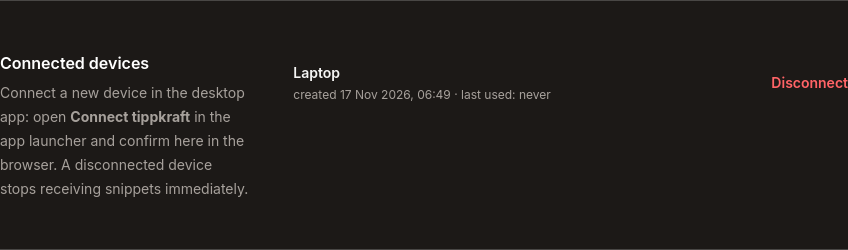
Connected devices lists every computer with the desktop app. Remove one, and it stops receiving your snippets immediately.
Sessions lists the browsers you are signed in with. You can sign out of a single one or of all others, for example after using a shared computer.
Your data
Under Your data you can download all your snippets, groups and settings as a file, at any time.
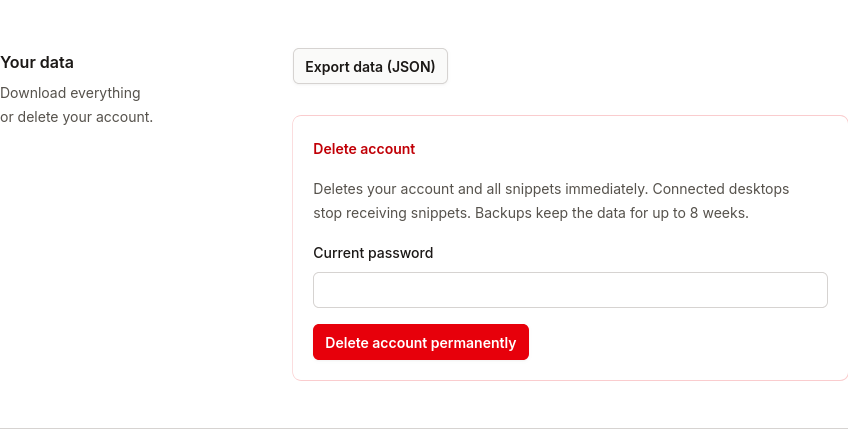
You can also delete your account there. That deletes your account and all snippets right away. Connected computers stop receiving snippets. Backups still contain your data for up to 8 weeks before it is gone for good.