
Appearance
Company accounts
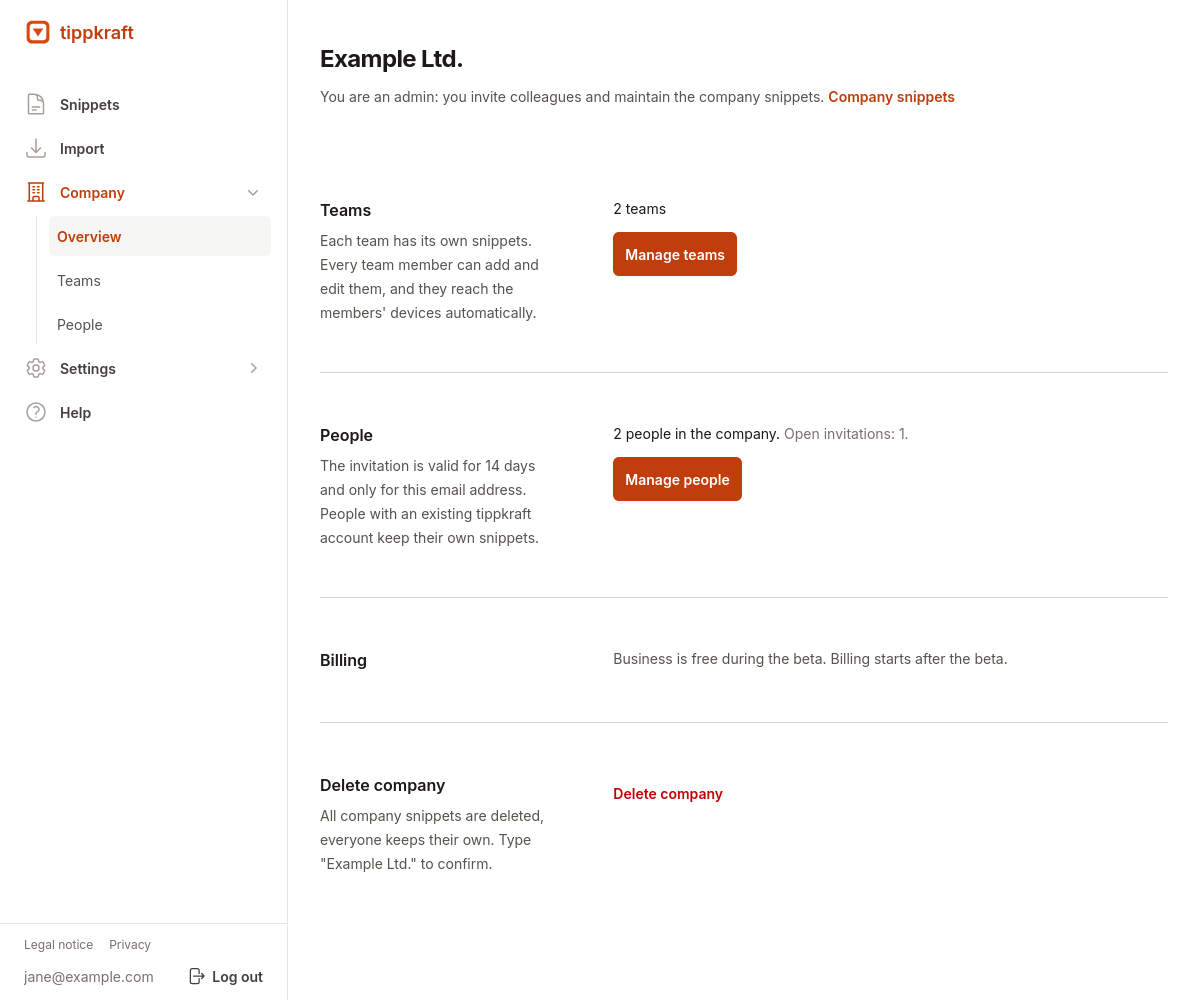
With a company account, a team shares its texts. Admins maintain company snippets that everyone in the company gets on their computers. In addition, everyone can share their own snippets with the whole company or with individual colleagues.
Company accounts are free during the beta.
Creating a company
- In the web app's menu, open Company › Overview.
- Enter your company's name.
- Click Create company. You become the owner and an admin.
Inviting colleagues
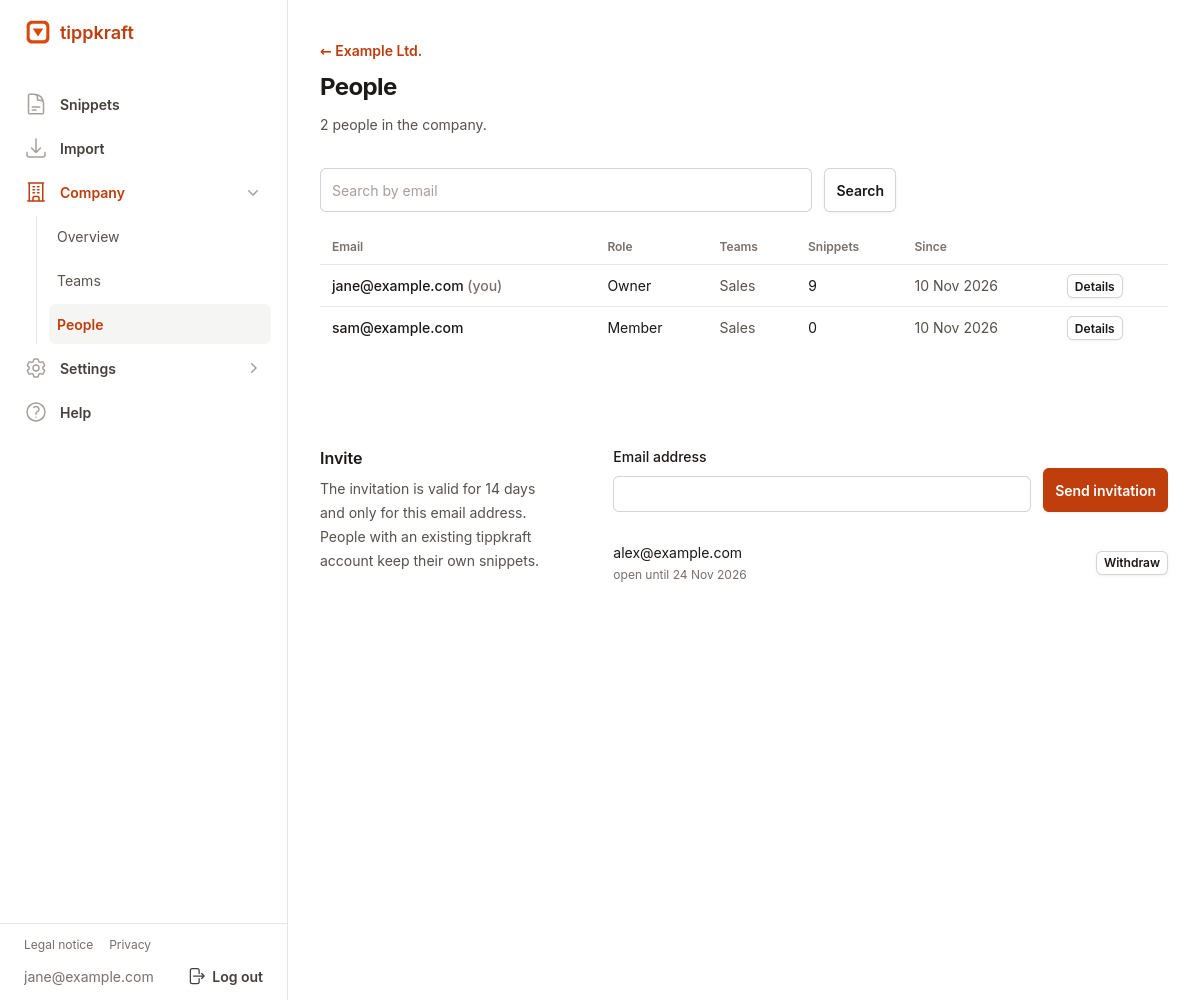
- On the company page, click Manage people.
- Under Invite, enter a colleague's email address.
- Click Send invitation. They get an email with a link. The invitation is valid for 14 days and only works with that email address.
- Colleagues without a tippkraft account create one through the link.
- Colleagues who already have an account keep their own snippets and get the company snippets in addition.
Open invitations are listed below. You can withdraw them.
People
Manage people opens a table of everyone in the company with their role, teams, number of snippets and the date they joined. Search by email address helps in large companies.
Admins click Details to open a person's page. It shows their teams and the snippets they share, and lets admins change the role or remove the person.
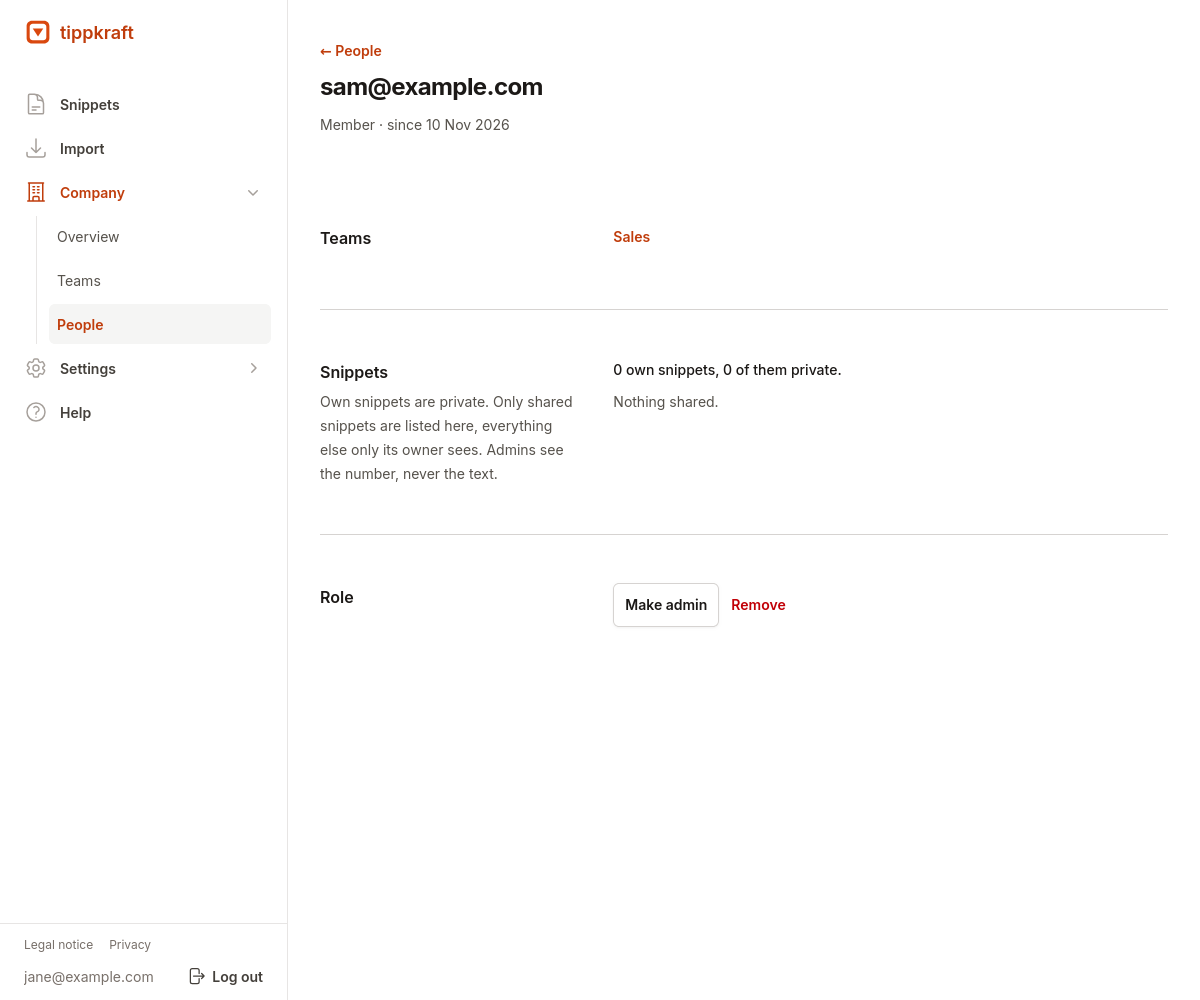
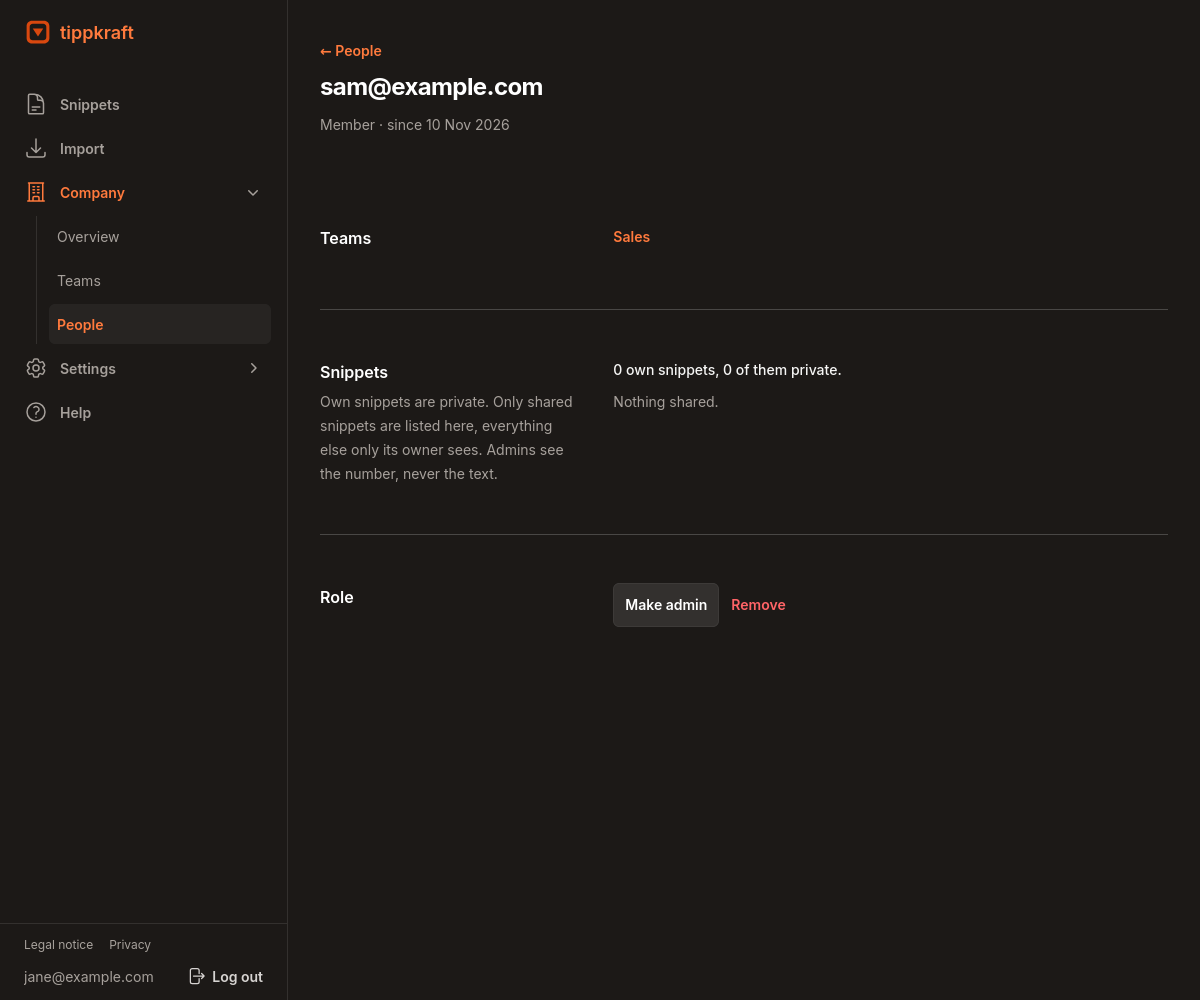
Private snippets stay private. Your own snippets are only visible to you. Colleagues and admins see only what you share or move to a team. On the details page, admins see how many private snippets someone has, never their text.
Roles
| Role | Can do |
|---|---|
| Owner | everything an admin can do, book the Business plan, delete the company |
| Admin | invite and remove people, make others admin, write company snippets |
| Member | use company snippets, share own snippets |
Company snippets
At the top of the snippet list you can switch between My snippets, Company and Shared with me.
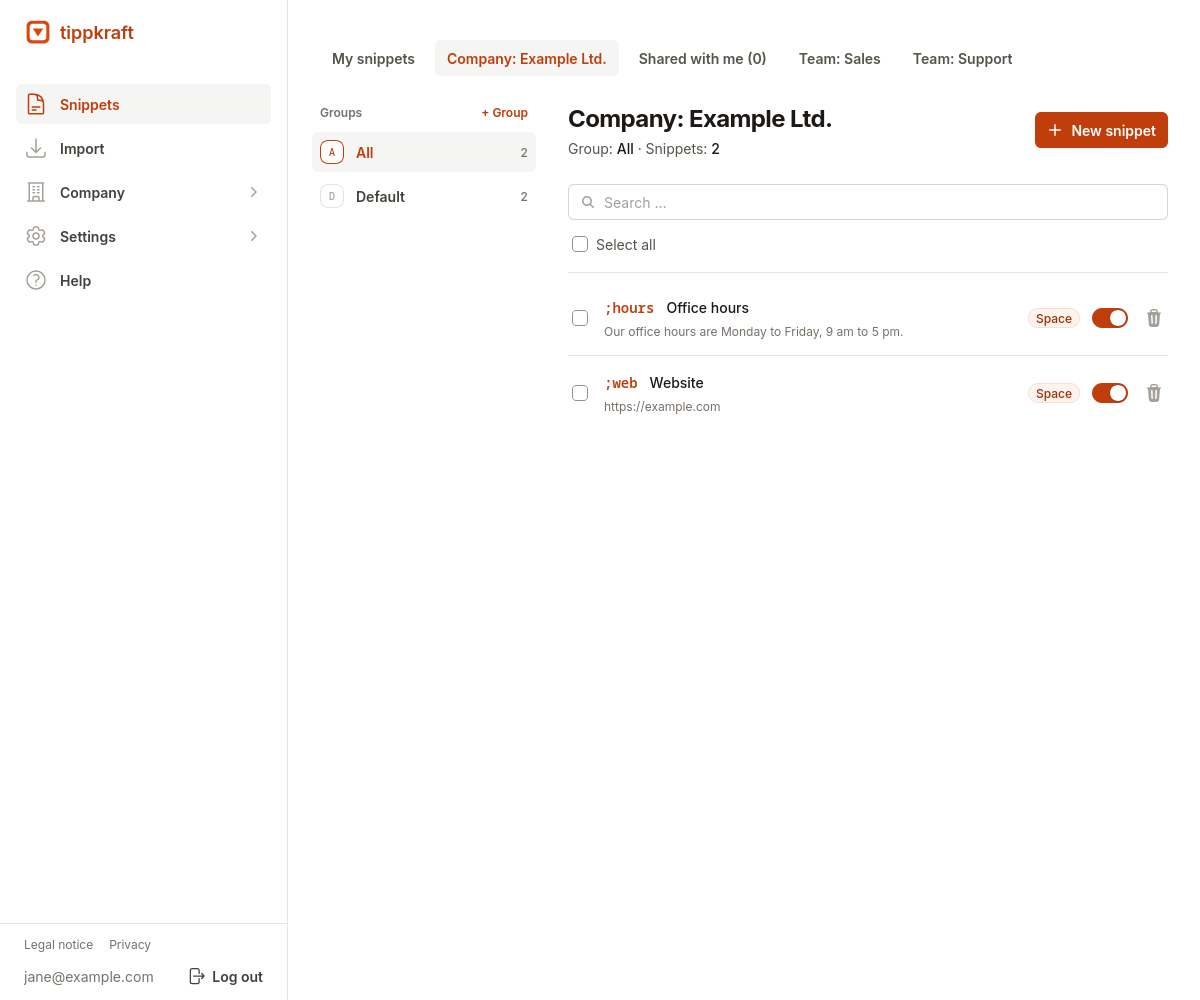
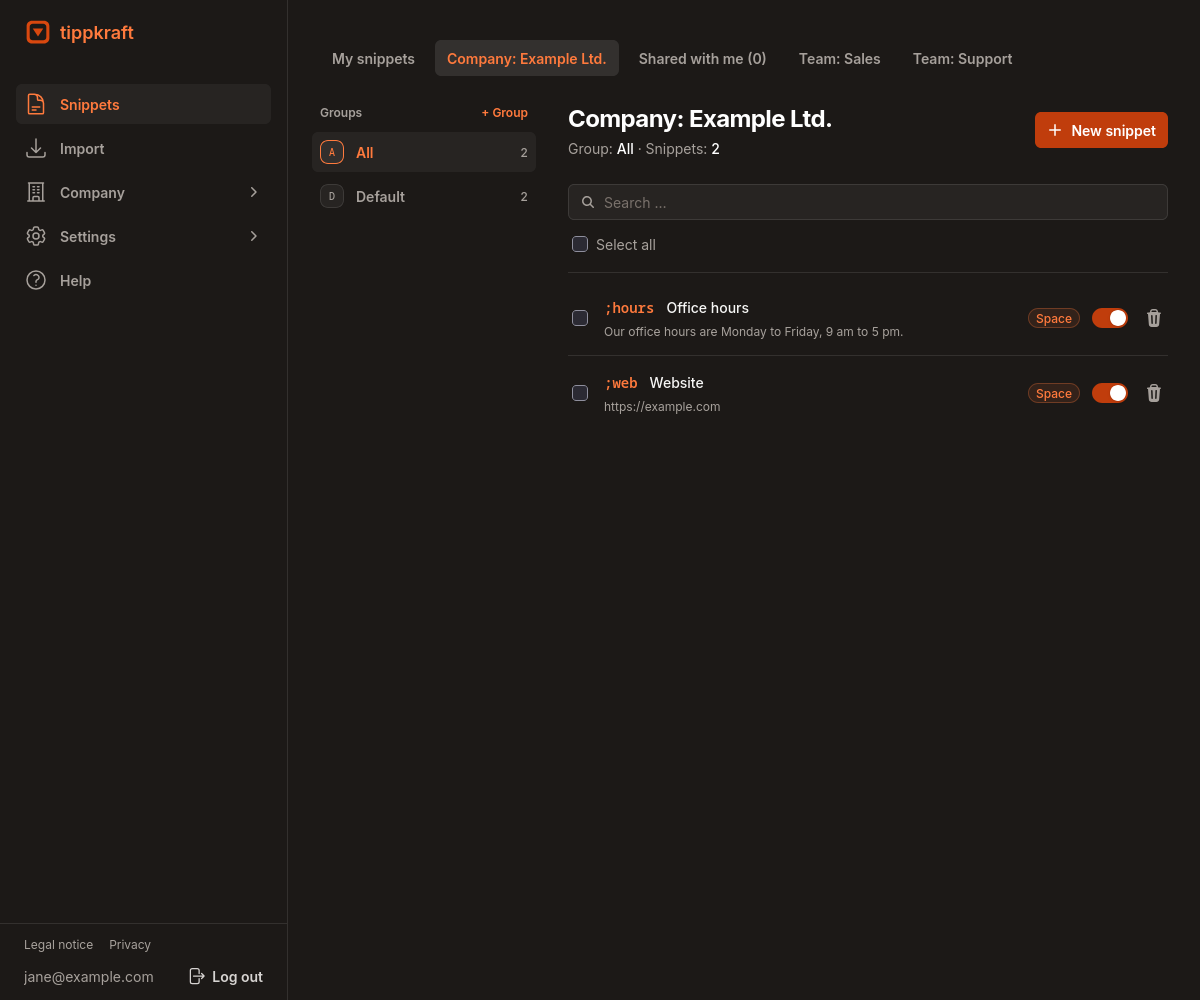
Admins create and change company snippets just like their own. Members see them read-only. If a member wants to change one for themselves, they click Copy to put a copy into their own snippets.
Admins can also import into the company snippets: on the import page, choose the company as the import target.
Sharing your own snippets
One snippet, step by step
- Open the snippet.
- Scroll to Share … below the content.
- Choose With the whole company, With selected colleagues or Not shared.
- For selected colleagues, click the field below and pick the colleagues. Type a few letters of an email address to find someone.
- Click Save sharing.
Several snippets at once: tick them in the list and click Share … in the bar that appears.
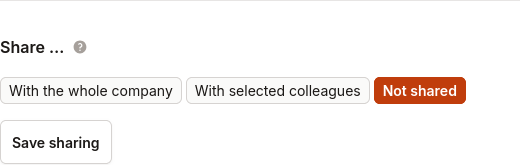
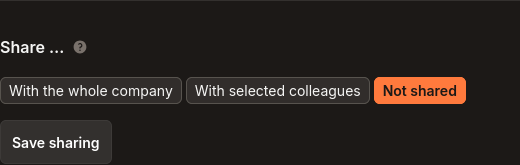
- With the whole company: everyone in the company gets it, including people who join later.
- With selected colleagues: only the people you tick.
- Not shared: ends sharing.
You stay the owner and can keep editing. Your colleagues get every change automatically. Shared snippets show a label in your list, for example "Shared with company".
Teams
Teams are for groups inside the company, for example sales or support. Each team has its own snippets, and every team member can add and edit them. Admins can work in every team.
Creating a team, step by step (admins)
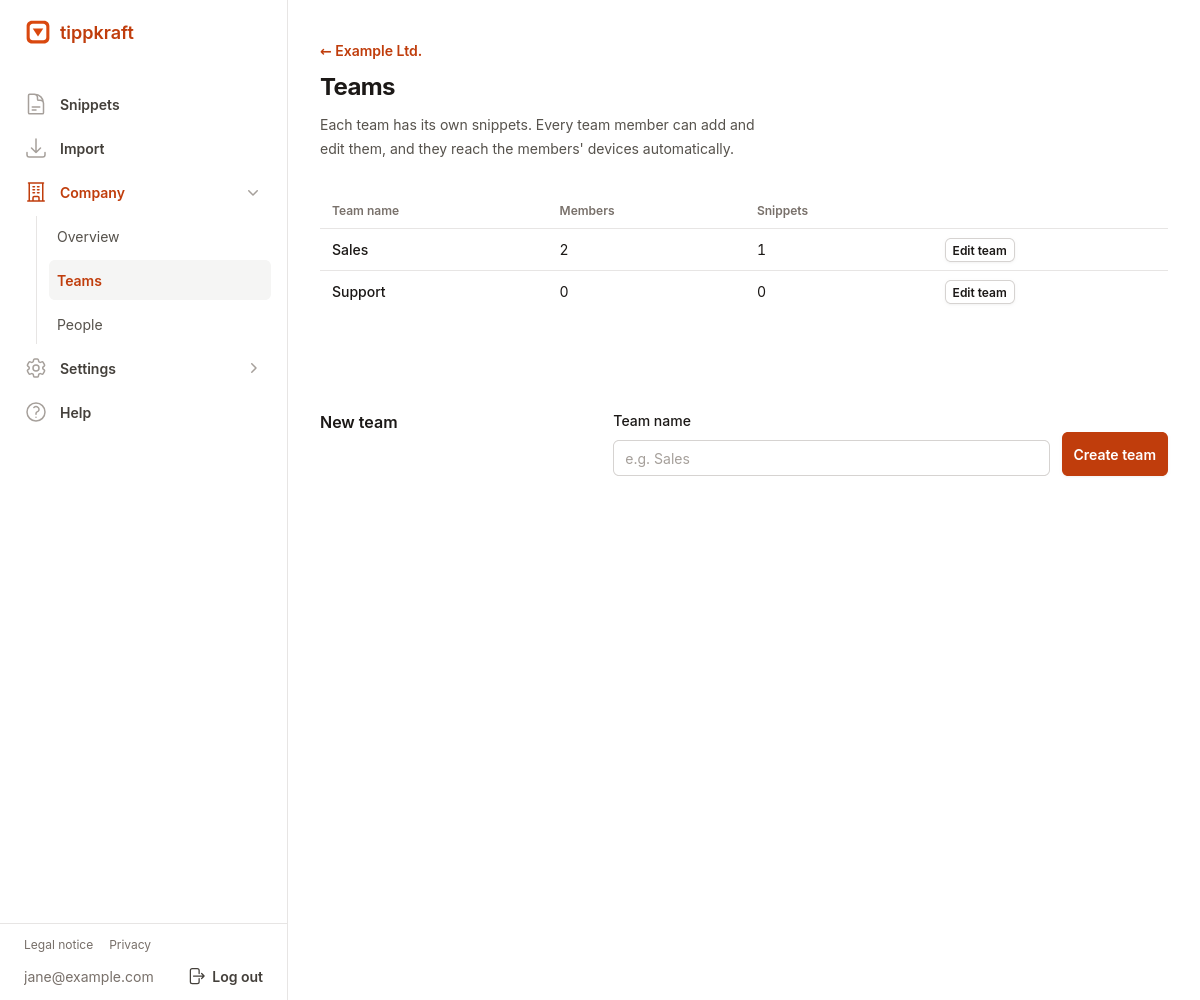
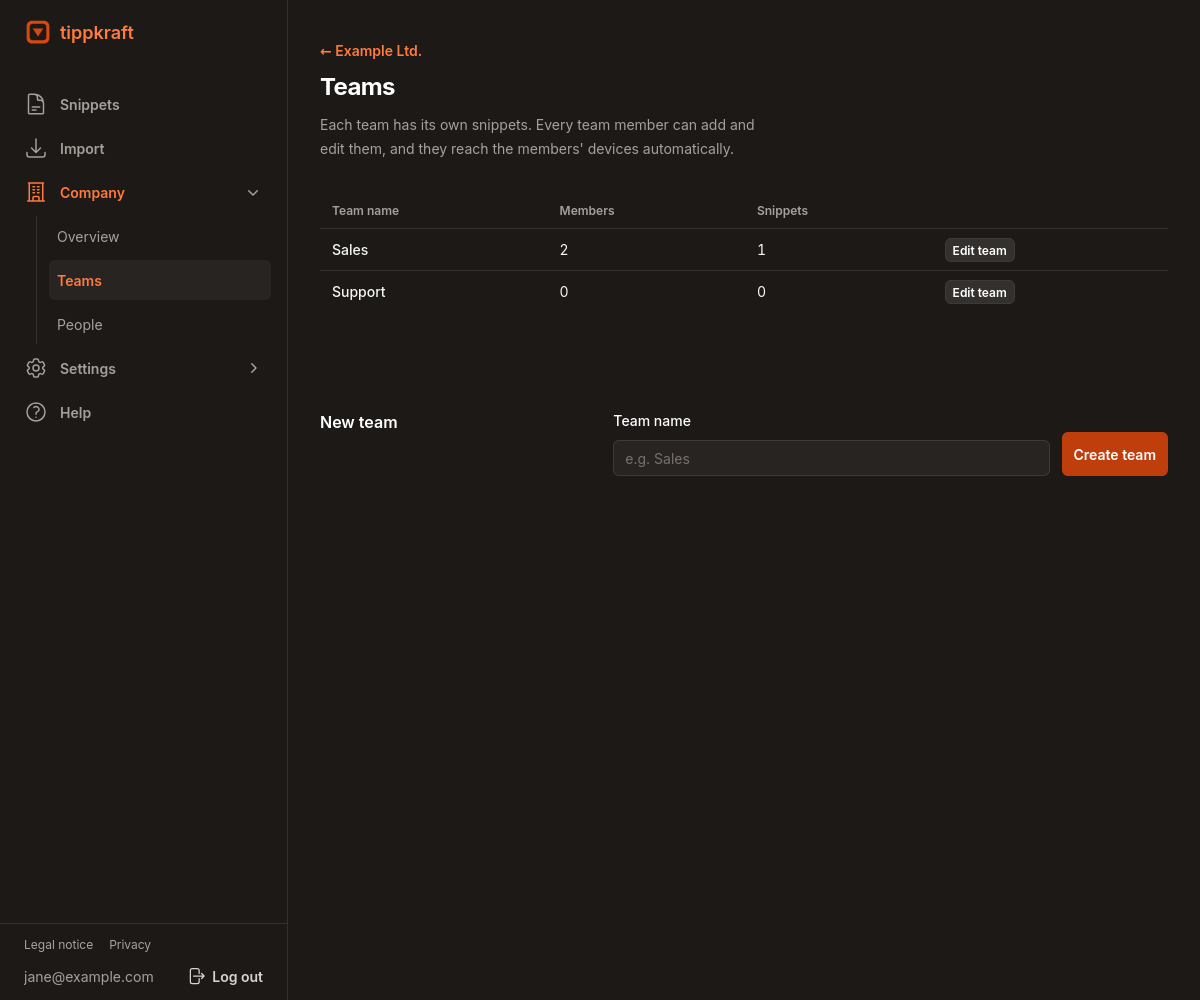
- In the menu on the left, open Company › Teams. The table lists all teams with their members and snippets.
- Enter a team name under New team and click Create team.
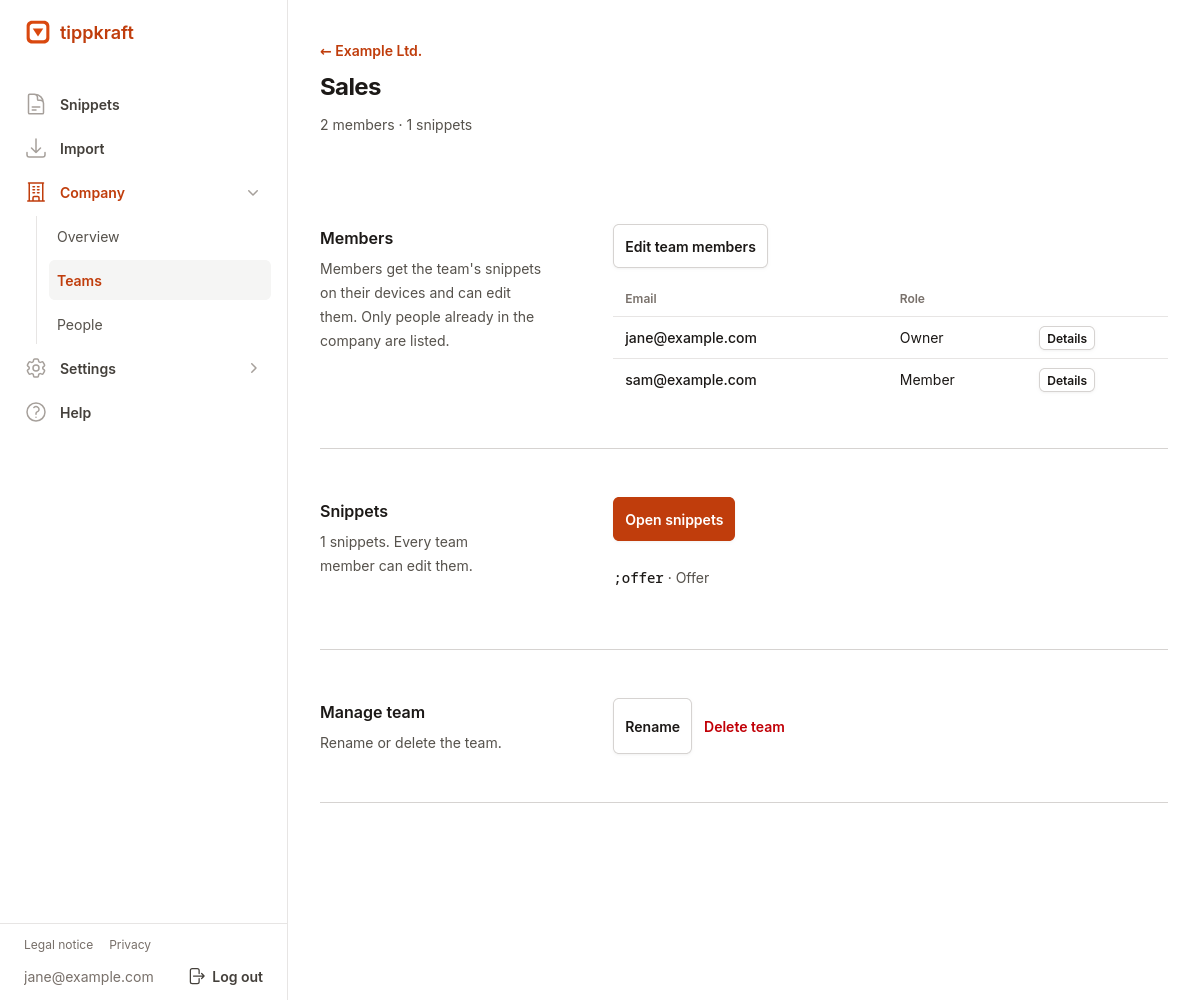
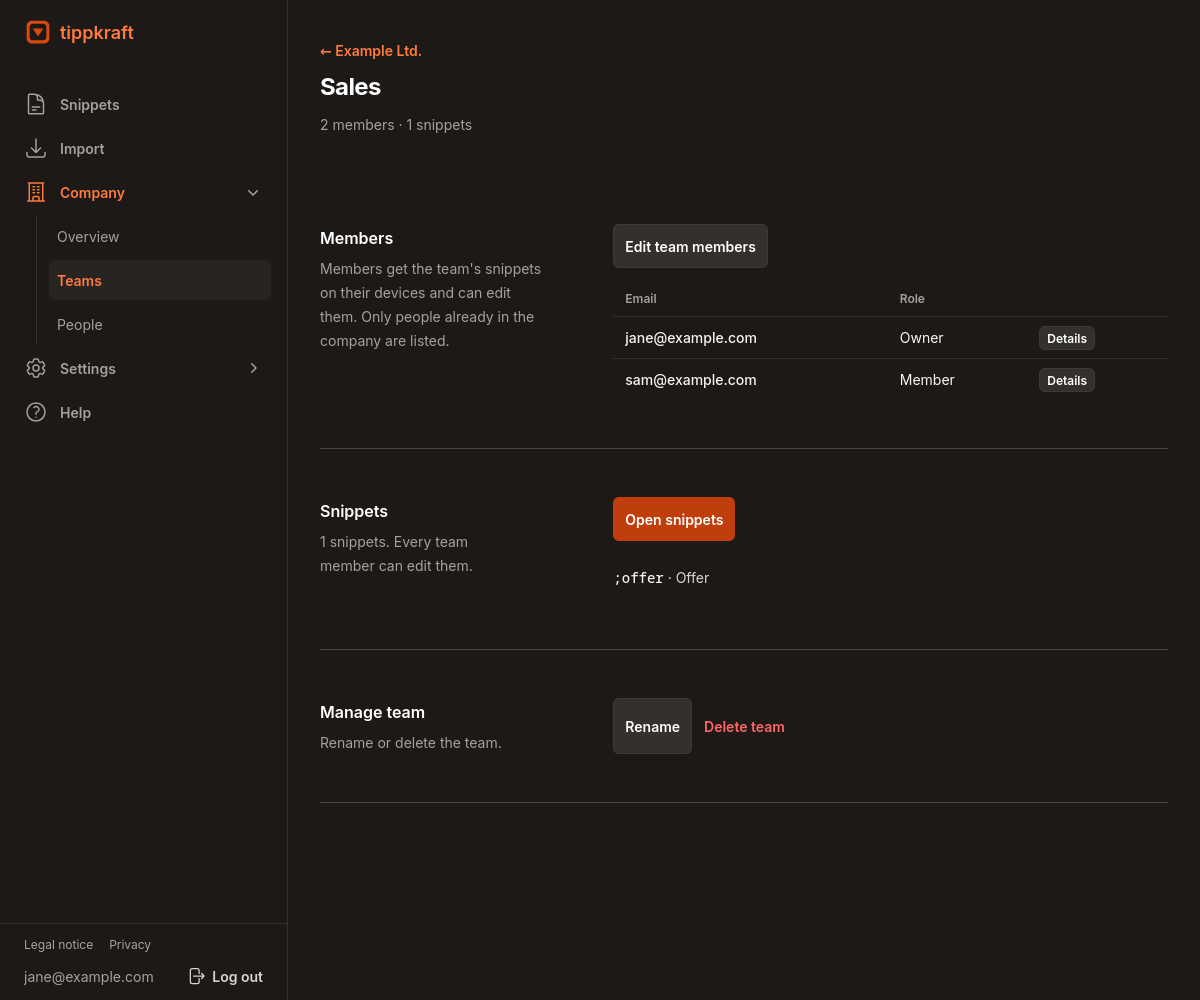
- Click Edit team in the team's row. The team page lists the members and the team's snippets.
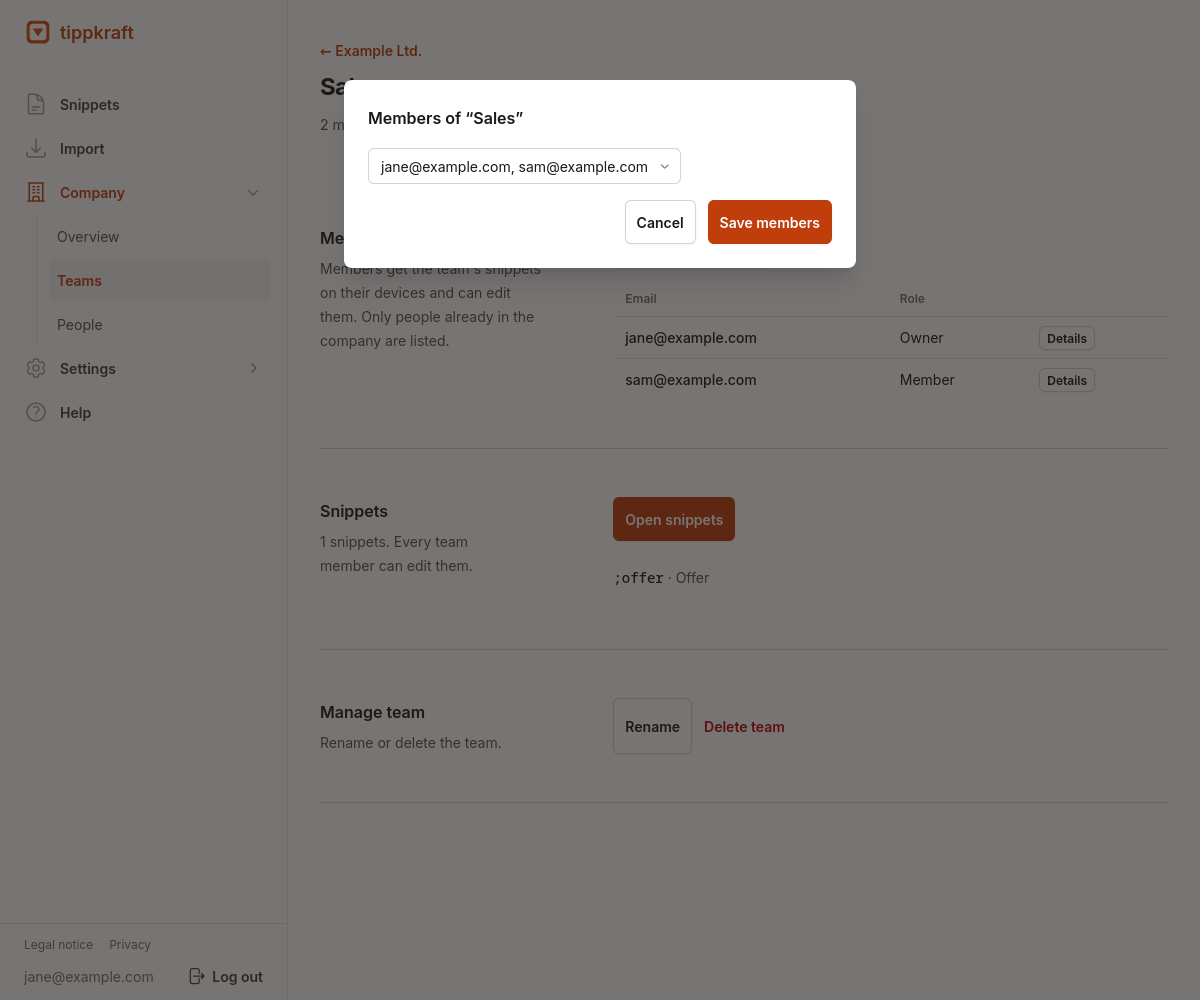
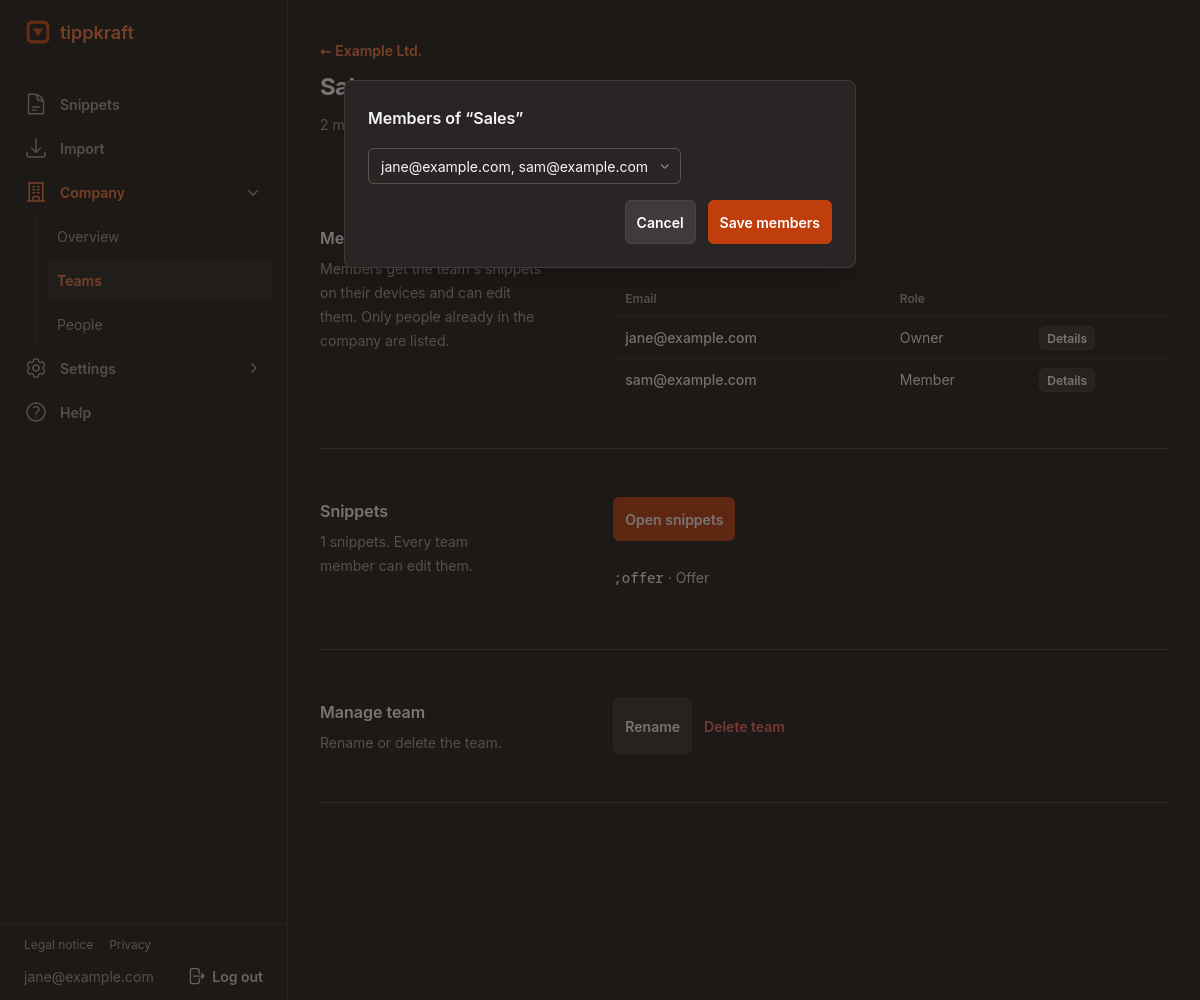
- Click Add team members, click the field and pick the people who belong to the team. Type a few letters of an email address to find someone.
- Click Save members.
Rename and Delete team are on the team page as well.
 Deleting a team deletes its snippets. A company can have up to 20 teams.
Working in a team: above your snippet list, click your team, for example Team: Sales. You can add, edit and delete snippets there as usual. Everyone in the team gets the changes on their devices automatically.
Moving your own snippets to a team, step by step
- Open My snippets and tick the snippets.
- Click Move to team … in the bar that appears.
- Pick the team and click Move. They leave your own snippets and reach your devices through the team from then on. If the team already has one of the abbreviations, nothing is moved and tippkraft tells you which ones clash. To import snippets for a team, import them into your own snippets first and then move them.
A reference like {>sig} inside a team snippet only finds snippets of the same team.
When the same abbreviation exists twice
If the same abbreviation exists more than once, this order applies on your computer: your own snippet, then the company snippet, then team snippets (teams in alphabetical order), then snippets shared with you. The list marks your own snippets that win with "overrides a company, team or shared snippet".
Leaving or deleting a company
Members can leave a company at the bottom of the company page. Their own snippets stay with them. The owner can delete the company there as well. That deletes the company snippets for everyone, and it cannot be undone.