
Appearance
Importing snippets
Coming from another text expander? You do not have to type your snippets again. tippkraft imports them from TextExpander and PhraseExpress. Before anything is saved, you see a preview and decide what to bring along.
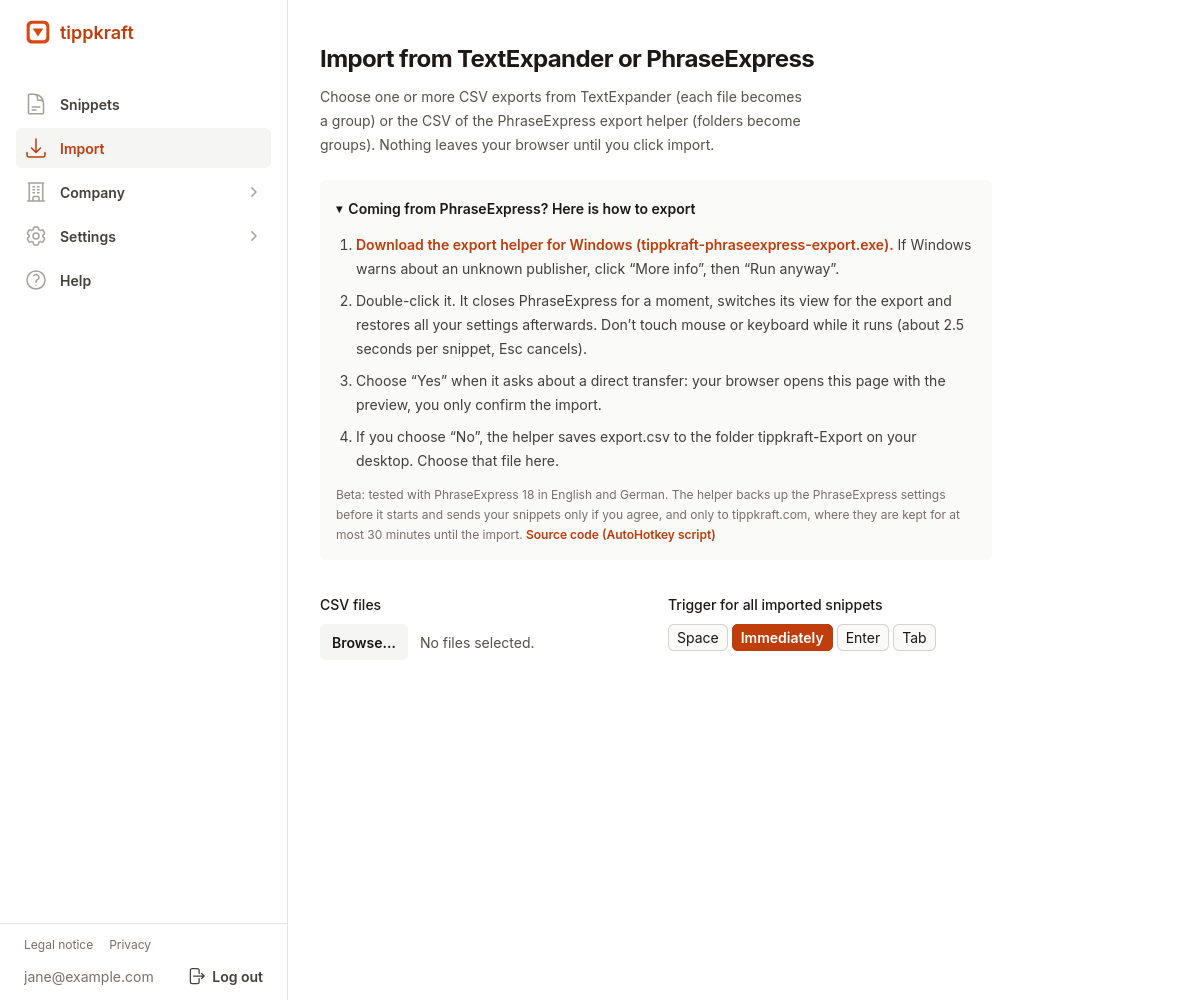
Open Import in the web app's menu.
From TextExpander
- In TextExpander, use the export function to save each group you want to bring along as a CSV file.
- In tippkraft, click Browse… under CSV files and choose one or more of these files. Each file becomes a group with the same name.
- Check the preview. Untick snippets you do not want. Snippets whose abbreviation you already use are marked and skipped.
- Choose the trigger for all imported snippets (see Triggers).
- Click Import.
TextExpander's fill-in fields, dates, clipboard and cursor marks are translated into tippkraft placeholders automatically.
From PhraseExpress
PhraseExpress cannot export your phrases to a normal file, so we built a small helper program for Windows. It reads your phrases from the PhraseExpress window and sends them to tippkraft.
- On your Windows computer, open the import page in tippkraft and click Coming from PhraseExpress? Here is how to export.
- Download the export helper (
tippkraft-phraseexpress-export.exe). - Double-click it. Windows may warn you that the publisher is unknown. Click More info and then Run anyway.
- The helper asks whether it should send the snippets straight to your tippkraft account. Choose Yes.
- Do not touch mouse and keyboard while the helper works. It clicks through PhraseExpress on its own, which takes about 2.5 seconds per phrase. You can cancel with Esc.
- When it is done, your browser opens the tippkraft import page with a preview. Sign in if asked.
The helper closes PhraseExpress for a moment and changes its view for the export. Afterwards it puts all your PhraseExpress settings back exactly as they were.
If you choose No in step 4, the helper saves a file export.csv in a folder tippkraft-Export on your desktop. Copy it to your Linux computer and choose it on the import page.
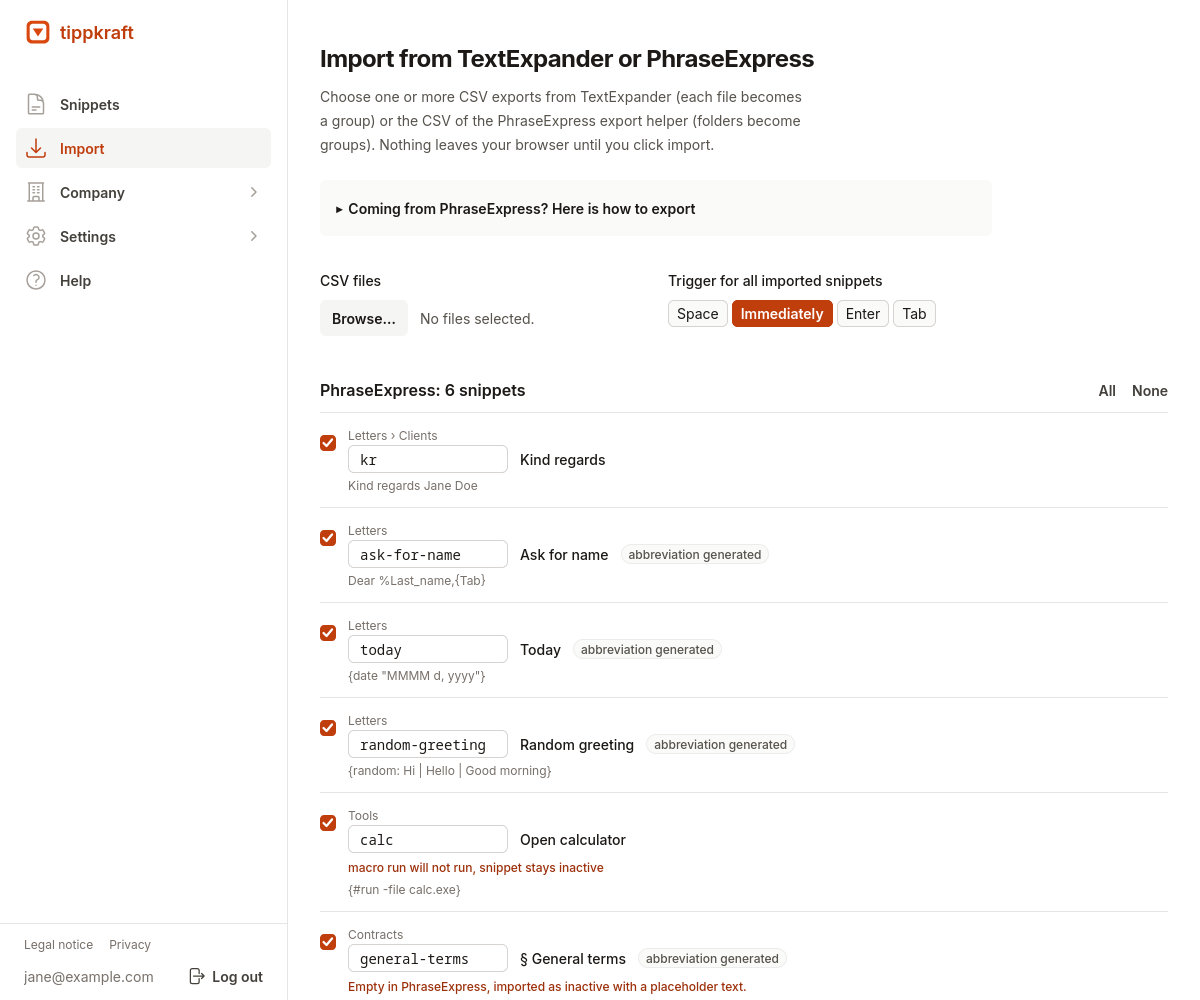
In the preview you see each phrase with its folder. PhraseExpress folders become tippkraft groups.
- Phrases without an autotext get an abbreviation made from their description, marked abbreviation generated. You can change it right in the preview.
- Prompts, choices, dates, the clipboard, key presses and links are translated into tippkraft placeholders.
- Macros for prompts, choices, dates (also shifted, like "in 14 days"), random text, variables (
settemp,gettemp) and simple conditions (cond) are translated into tippkraft placeholders. - PhraseExpress can do some things tippkraft cannot, for example run programs, show message boxes or ask an AI. Phrases with such macros are still imported, but switched off. You find them under Inactive at the end of your snippet list and can edit them there.
- Phrases that are Word documents in PhraseExpress cannot be read by the helper. They are imported switched off with a note. Copy the text over from PhraseExpress by hand.
TIP
The direct transfer keeps your phrases on tippkraft.com for at most 30 minutes, only until you import them, and only your account can open them.