
Appearance
Formatted text
Normally a snippet is plain text. With formatted text, a snippet can contain bold, italic and underlined words, links and bullet lists. That is handy for email signatures, templates with links or anything that should look the same as in a document.
Formatted text is part of the Pro plan and free for everyone during the beta.
Turning it on
Open a snippet and tick Formatted above the content field. A small toolbar appears at the top of the field. Placeholders keep showing as labels.
Step by step
- Open the snippet.
- Tick Formatted above the content field.
- Select a word in the content.
- Click B for bold, I for italic, U for underline, the chain for a link or the list symbol for a bullet list.
- Click Save.
To switch back to plain text, untick Formatted. If the text has formatting, tippkraft asks first, because the formatting is lost.
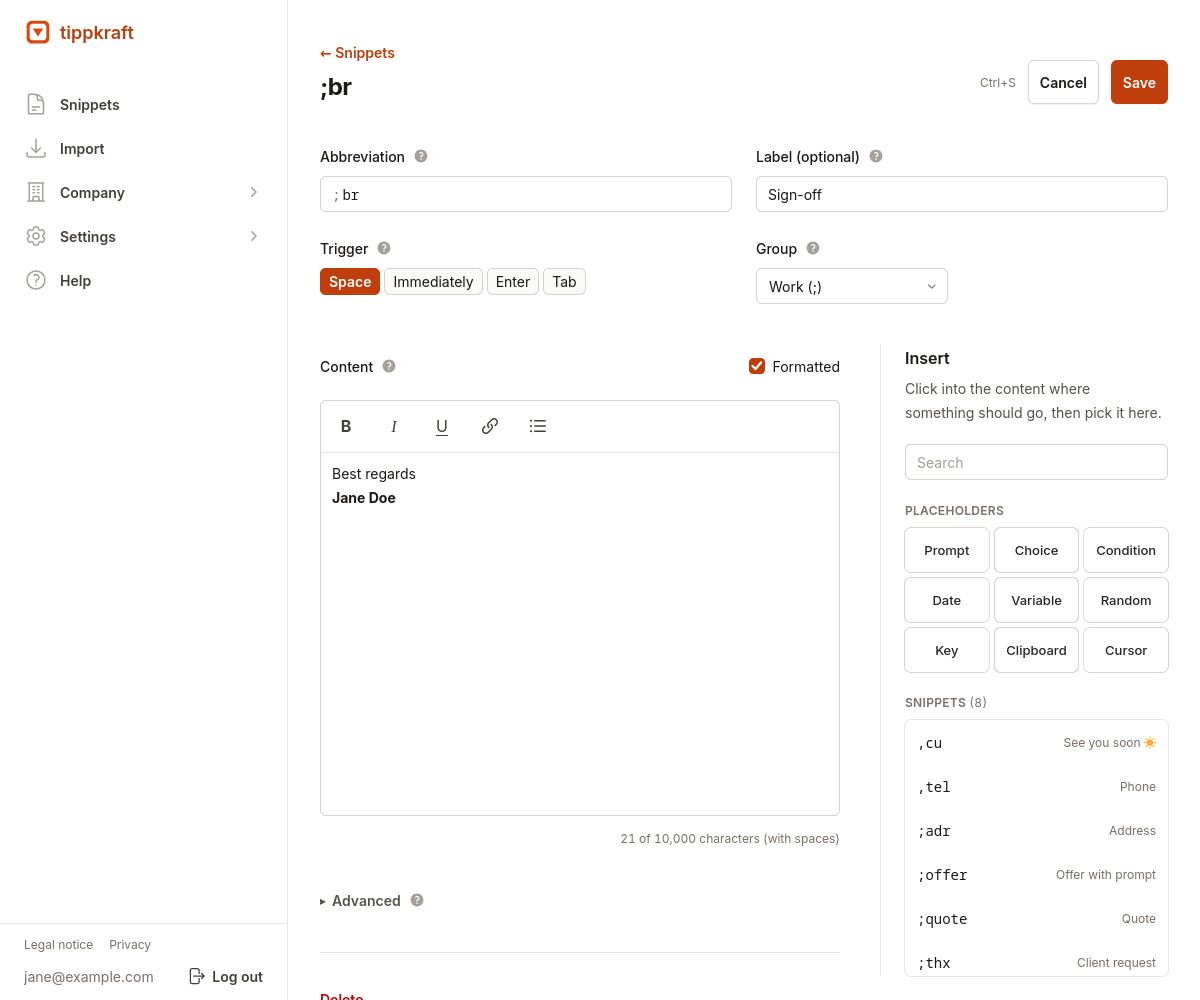
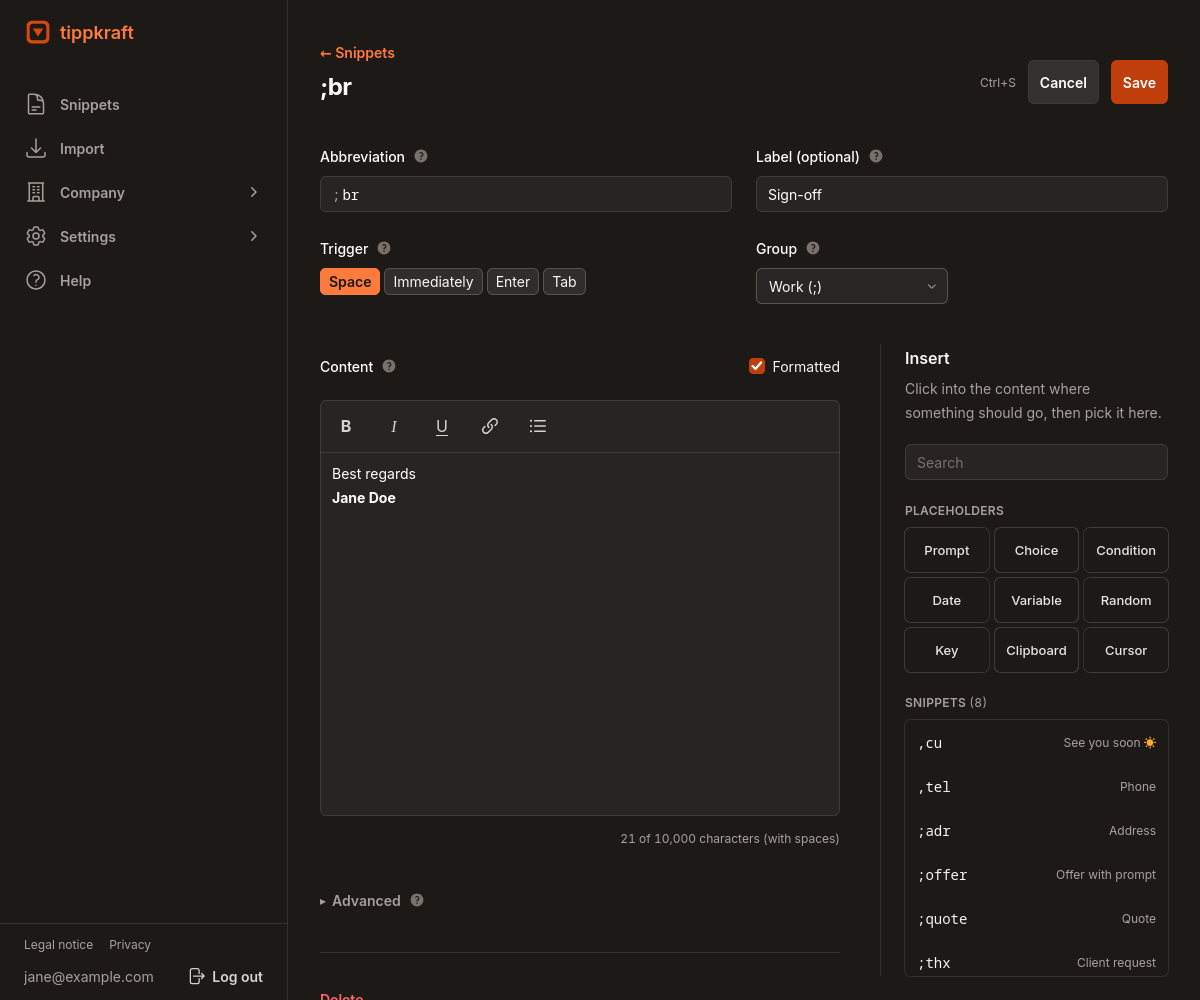
Select a word and click a button in the toolbar, or use the usual shortcuts: Ctrl+B for bold, Ctrl+I for italic, Ctrl+U for underline. You can also paste formatted text from another program, and tippkraft keeps the formatting it supports.
In the snippet list, formatted snippets have the label Formatted.
How it arrives
Formatted snippets are pasted through the clipboard, because only that way the formatting reaches the other program:
- Email programs, browsers and office programs get the formatting.
- Terminals and code editors get plain text.
- What you had copied before is put back on the clipboard right afterwards.
Placeholders work in formatted snippets as well.