
Appearance
On your computer
Once the desktop app is installed and connected, it runs quietly in the background. It starts by itself every time you log in.
Using your snippets
Type the abbreviation of a snippet in any program, followed by its trigger (usually a space). tippkraft deletes the abbreviation and types the text.
tippkraft types with your own keyboard layout, so accents, umlauts and other special characters come out right. Emoji and characters your keyboard cannot type are pasted through the clipboard; whatever you had copied before is put back afterwards.
See all snippets
Press Mod+Alt+Space to open a window with all your snippets and a search field. Type a few letters of the abbreviation, the label or the text, choose a snippet with the arrow keys and press Enter: tippkraft inserts it where your cursor was. Press the shortcut again or Esc to close the window.
This is useful when you have forgotten an abbreviation.
Pause
Sometimes you want tippkraft to do nothing for a while, for example during a presentation. Press Mod+Alt+T to pause, and again to resume.
Emergency stop
If tippkraft ever types something it should not, press left Ctrl + left Alt + Backspace together. tippkraft stops immediately.
The tray icon
On desktops with a system tray (the area with small icons, usually at the top or bottom right), tippkraft shows its icon there:
- Left click pauses or resumes.
- Right click opens a menu with pause, all snippets and more.
On GNOME the tray needs the extension "AppIndicator and KStatusNotifierItem Support".
Programs where tippkraft should stay quiet
You can tell tippkraft to ignore certain programs, for example your password manager. Open Settings → Excluded apps in the web app and add the program's name.
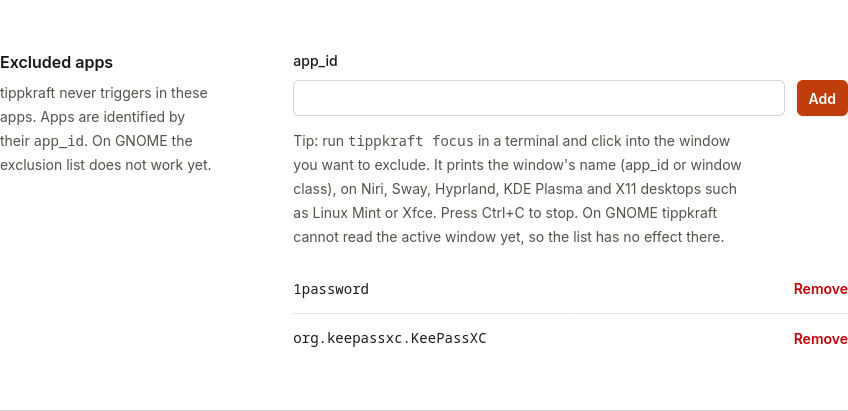
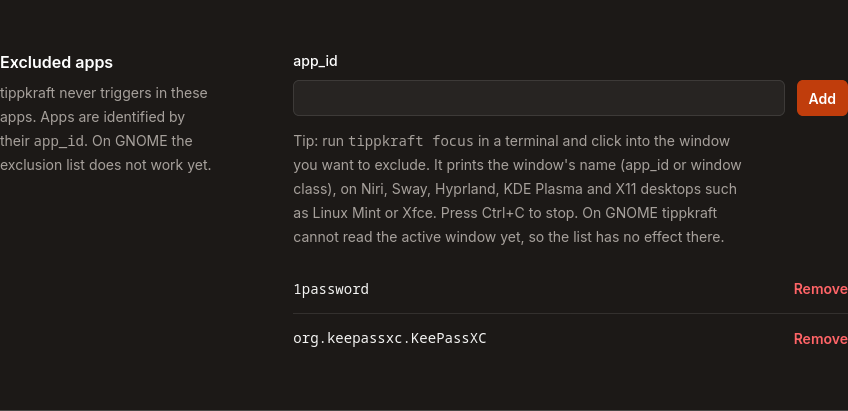
To find out a program's name, open a terminal, type tippkraft focus and press Enter, then click into the program's window. The terminal shows the name to enter. This works on Niri, Sway, Hyprland, KDE Plasma, GNOME and X11 desktops such as Linux Mint or Xfce.
GNOME
On GNOME, tippkraft adds a small GNOME extension called “tippkraft focus”. It only tells tippkraft which program is active, never window titles or content. GNOME loads it after you log out and back in once. Until then the exclusion list has no effect. It needs GNOME 45 or newer, for example Ubuntu 24.04.
Browser extension installed?
In browsers with the tippkraft browser extension the desktop app stays quiet automatically, the extension takes over there.
Your privacy
To recognize abbreviations, tippkraft has to notice which keys you press. It only remembers the last 64 or so characters, only in memory, never writes them to disk and never sends them anywhere. Your snippets are the only thing it downloads.
Useful commands
You rarely need these, but they can help:
| Command | What it does |
|---|---|
tippkraft status | shows whether tippkraft is running and connected, and whether an update is available |
tippkraft pause | pauses or resumes |
tippkraft overview | opens the window with all snippets |
tippkraft connect | connects this computer to your account again |
tippkraft setup --shortcuts | asks again about the two keyboard shortcuts |
To update tippkraft, run the installation line from the settings again. If you installed it from the AUR, update it with your package manager.