
Appearance
Getting started
This page walks you through everything from creating your account to your first expanded snippet. Plan about five minutes.
1. Create your account
Open tippkraft.com/register and enter your email address and a password. You can also sign up with Google or GitHub if you prefer.
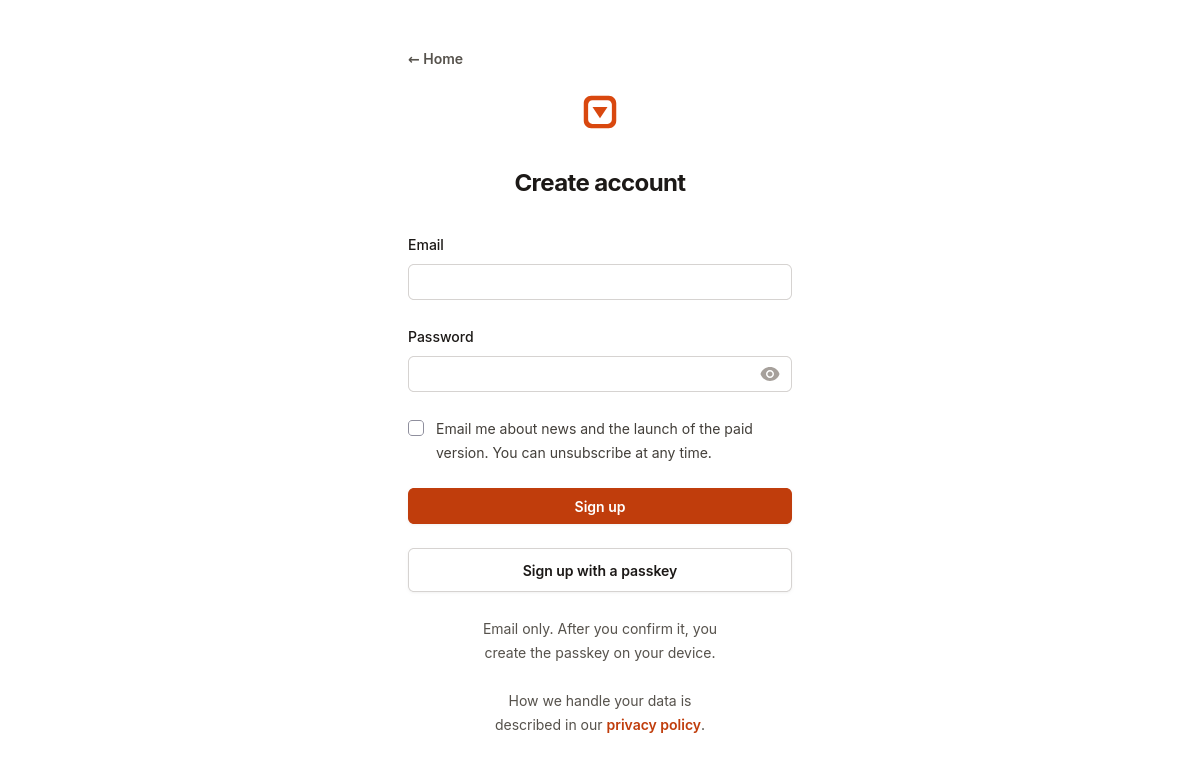
tippkraft sends you an email with a confirmation link. Click it to activate your account. If you do not see the email after a few minutes, look in your spam folder.
2. Install the desktop app
The desktop app is what types your snippets on your computer. It runs on Linux computers with an Intel or AMD processor (x86_64) and these desktops:
- Wayland: GNOME 46 or later, KDE Plasma 6, Niri, Sway and Hyprland
- X11: Linux Mint (Cinnamon), Xfce, MATE
On Windows or macOS, or only need your snippets on websites? Use the browser extension. It works on its own, without the desktop app, so you can skip this step.
In the web app, open Settings and scroll to Install the desktop app. There you find one line to copy.
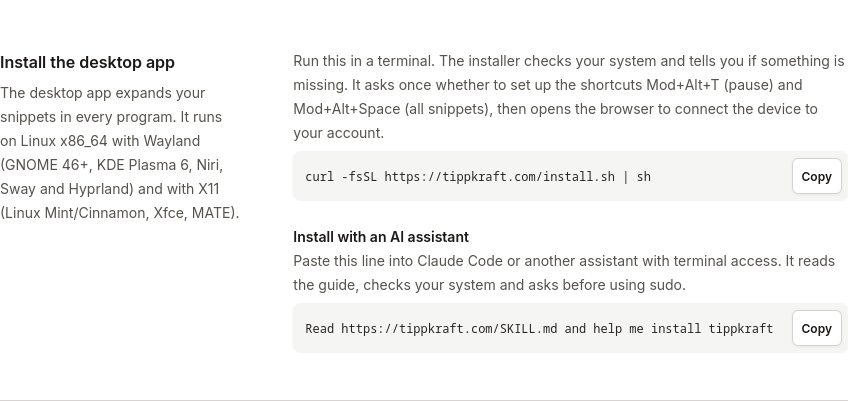
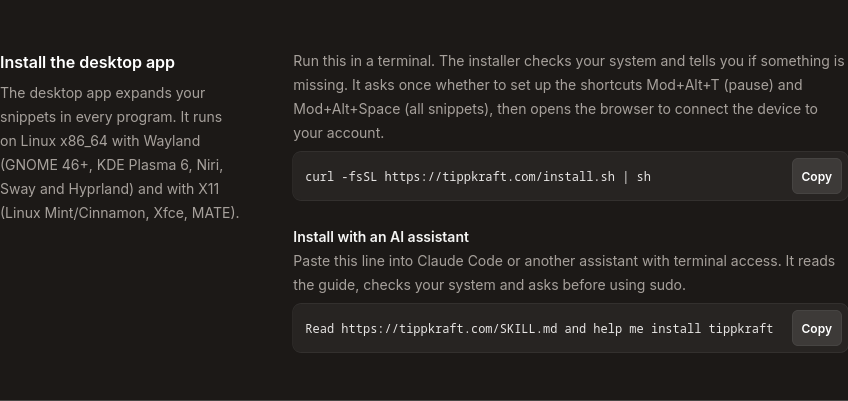
- Click Copy next to the line that starts with
curl. - Open a terminal. On most desktops you find it in the app menu under "Terminal" or "Console".
- Paste the line (usually with Ctrl+Shift+V) and press Enter.
The installer checks your computer and tells you in plain words if something is missing. It never asks for your administrator password on its own. If it needs one change that only an administrator can make, it shows you the exact command and explains why.
During installation, tippkraft asks once whether it should set up two keyboard shortcuts:
- Mod+Alt+T pauses and resumes tippkraft.
- Mod+Alt+Space shows all your snippets with a search field.
"Mod" is the key with the Windows or Super logo on most keyboards. We recommend answering yes. tippkraft never replaces a shortcut that you already use for something else.
Prefer to let an AI assistant do it?
If you use Claude Code or a similar assistant with access to your terminal, copy the second line from the settings instead. The assistant reads the installation guide, checks your system and asks you before it changes anything.
Arch Linux
tippkraft is also in the AUR: yay -S tippkraft-bin (or any other AUR helper). Then run tippkraft setup once as your user.
3. Connect your computer to your account
At the end of the installation your browser opens a page called Connect device. It shows the name of your computer and your account.
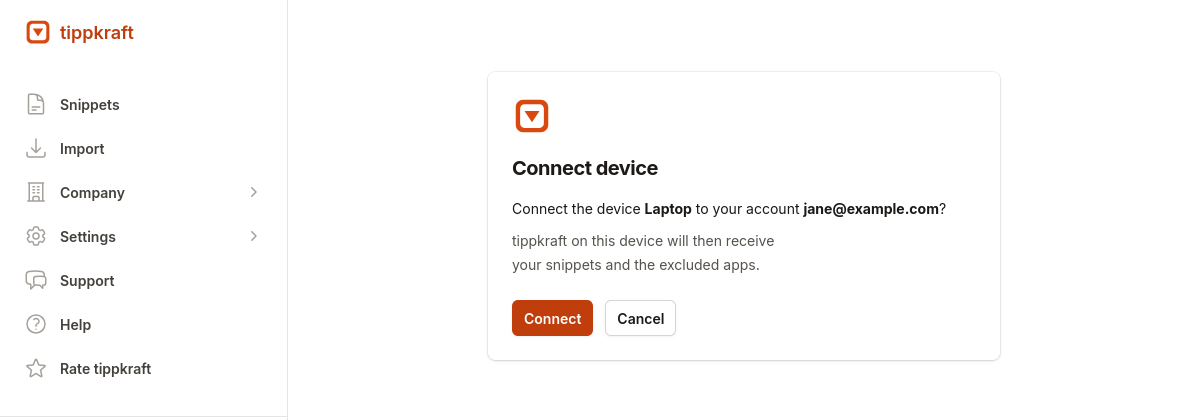
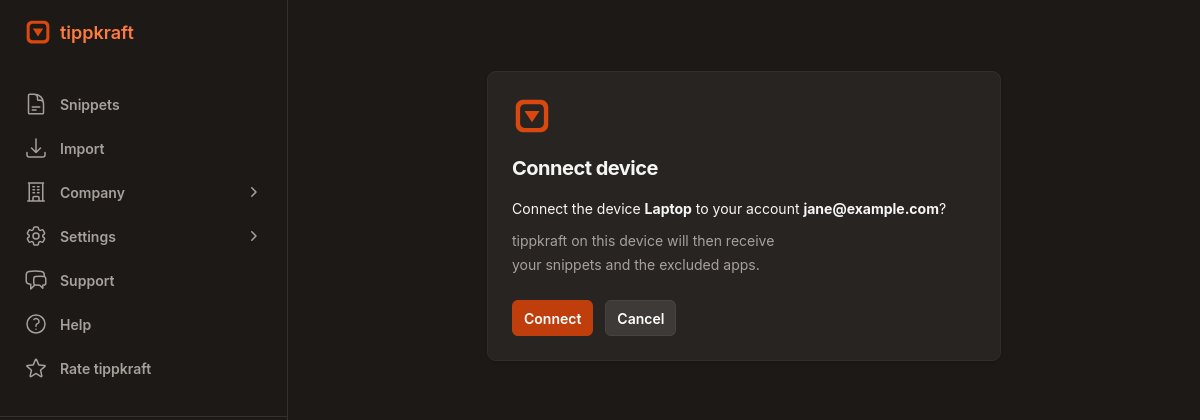
Click Connect. That's it: the desktop app now receives your snippets. If you were not signed in, the page asks you to sign in first.
You can connect more computers the same way. Your plan decides how many: one on Free, three on Pro. You see and remove connected computers under Settings → Connected devices.
4. Create your first snippet
Go back to the web app and click New snippet. Type an abbreviation, for example ;br, and the text it should become, for example:
Best regards
Jane Doe
Click Save. Now open any program, type ;br followed by a space, and watch tippkraft replace it.
Continue with Snippets to learn everything about abbreviations, groups and triggers.