
Appearance
Script notation
If you would rather type than click, tick Show formula above the content and write in the script notation. Conditions and choices become lines starting with #, variables start with %, and built-in values sit in single braces. No more double braces.
#ask %Type: Private | Company
#if %Type = Company and not %Contact
Dear Sir or Madam,
#else if %Type = Company
Hello %Contact,
#else
Hi %First_name,
#end

Your offer is valid until {date +14d "MMMM d, yyyy"}.{Tab}{cursor}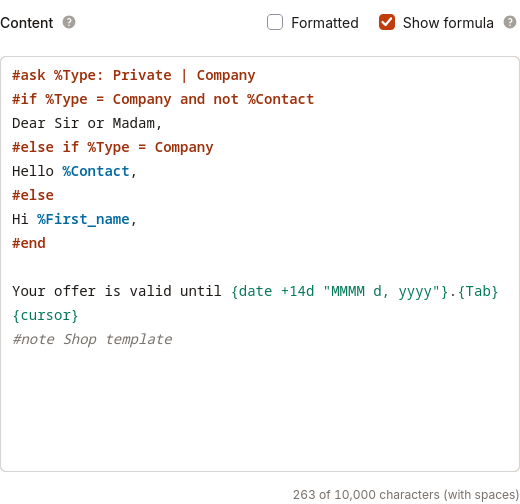
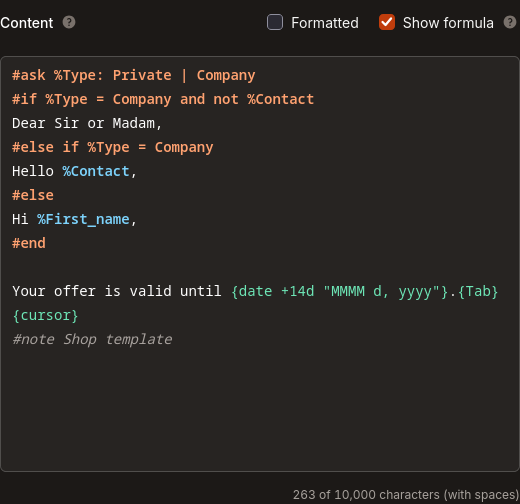
Switching on
Tick Show formula next to Content. The labels turn into text you can type in. Untick it to see the labels again. tippkraft remembers the setting, also for new snippets. In the rare case that a line break in the inserted text would change, a note asks you to check it.
Snippets with formatting always show labels. Code in a snippet is no problem: when tippkraft shows it as text, a { becomes \{ and a #if at the start of a line becomes \#if.
While you type, colours show what tippkraft recognises. An error appears below the field with its line number, and that line is marked.
Suggestions while typing
A small list opens when you type # at the start of a line, a % for a variable, {> for another snippet or { for a placeholder. Variables come from this snippet and from all your other snippets. Choose with the arrow keys and insert with Enter or Tab. Esc closes the list, and Enter then starts a new line as usual. After #set %, #ask % or #choice % the variables appear right away.
Variables and prompts
%Name inserts a value. If nothing in the snippet has set Name before, the small window asks for it when the snippet expands.
- A name starts with a letter, then letters, digits or
_, up to 40 characters._shows as a space:%First_nameasks for "First name". - The name ends at the first other character, so
%Name,and%Name.work. %only starts a variable after a space, the start of a line or punctuation such as(or:. After letters, digits or link characters it stays text, so50%off,100%and links likehttps://example.com/caf%C3%A9are safe.- Directly attached to a word, write
{%Name}, for exampleDear{%Ending}.
| Written as | Meaning |
|---|---|
%Name | value, asked for if not set |
{%Name*} | required field |
{%Type: Private | Company} | pick from a list |
{%Amount: number}, {%Mail: email} | checked input |
Lines with #
A line that starts with # and one of these words controls the snippet. It never appears in the text. Other lines are text, so # Heading and #include stay as they are.
| Line | Meaning |
|---|---|
#if … / #else if … / #else / #end | insert text depending on a condition |
#choice %Name / #option Text / #end | pick one option, each with its own text |
#set %Name = Text | set a variable, the text may contain %Other and {…} |
#set %Name … #end | variable from several lines |
#ask %Name, #ask %Name required: a | b | ask without inserting the answer. Add required, number or email before the colon |
#use %Name | value from an earlier snippet, don't ask |
#note Text | a note for you, not inserted |
Conditions can be nested two levels deep. #else if does not count as a level.
Line breaks
Lines with # disappear together with their line break. Text lines keep theirs. The last text line of the snippet ends without a line break, in every branch, even if only # lines follow. If you want one at the end, leave an empty line before.
Braces
| Written as | Inserts |
|---|---|
{date}, {date +14d}, {date "dd/MM/yyyy"}, {date -1m "MMMM"} | date, shifted by d, w, m or y |
{clipboard}, {cursor} | clipboard, cursor position |
{random: a | b | c} | one at random |
{Tab}, {Enter 3} | keys: Tab, Enter, Space, Backspace, Delete, Escape, Left, Right, Up, Down, Home, End |
{>sig} | the snippet with the abbreviation sig |
{if %Title = Dr then "Dear Doctor" else "Dear"} | a short condition inside a line |
Conditions
| Written as | True when |
|---|---|
%Name | something was typed or picked |
not %Name | nothing was typed or picked |
%Name = Company, %Name != Company | equal, not equal |
%Price > 100, <, >=, <= | numbers compared as numbers, 12.50 or 12,50 |
%Price > %Limit | compared with another variable |
%Mail contains @acme.com, not contains | text appears in the value |
Join up to 5 checks with and, or with or, but not both in one line. Upper and lower case do not matter. Put text in quotes only if it contains the words and or or: %Company = "Smith and Sons".
Characters as text
Write \%, \{ or \} for the character itself, and \# at the start of a line. A backslash before other characters stays, so C:\Users is fine.
TIP
The script notation is converted on tippkraft's server. Your computer runs the same tippkraft as before, only and/or needs tippkraft 0.1.21 or newer.