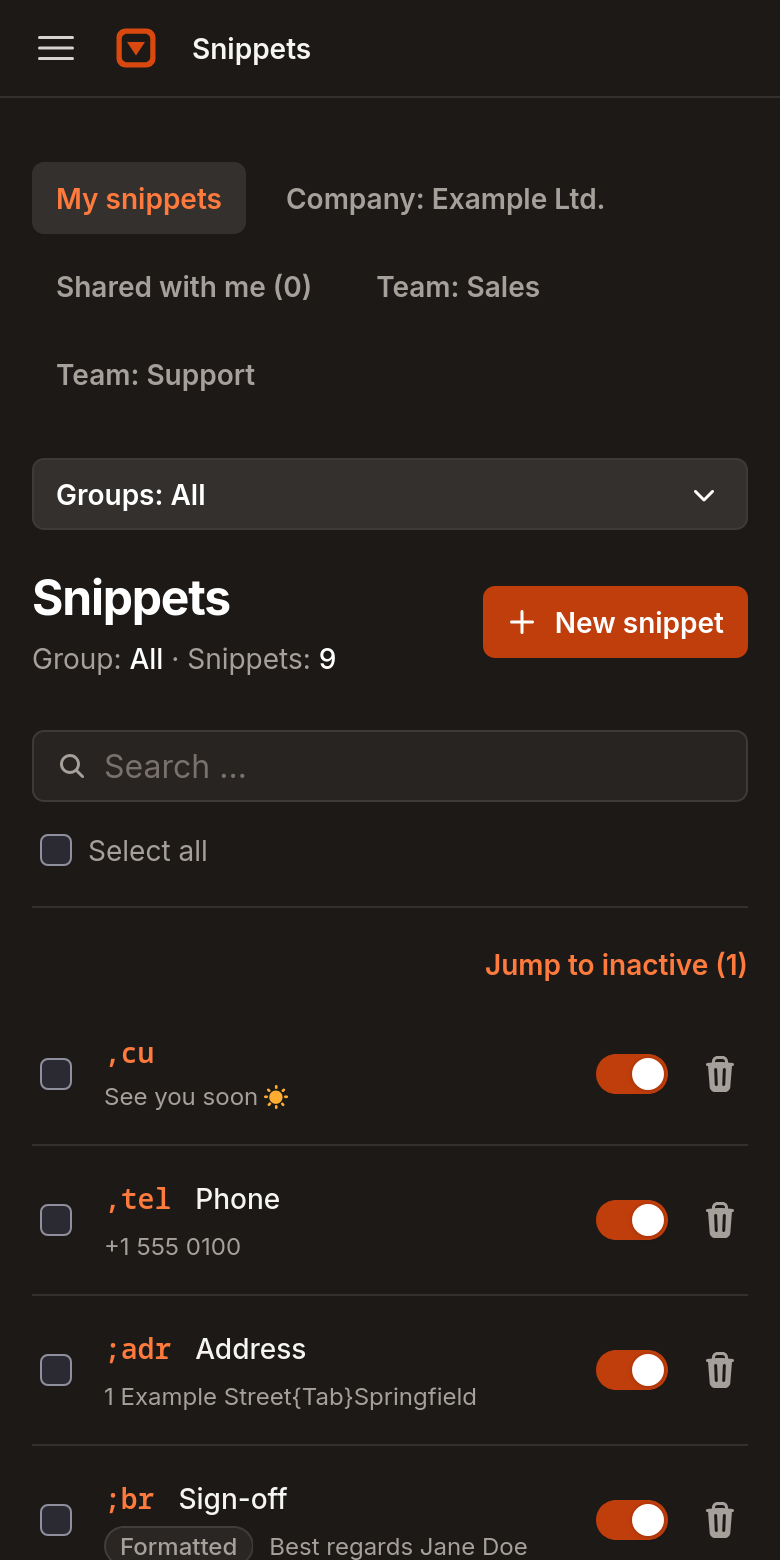
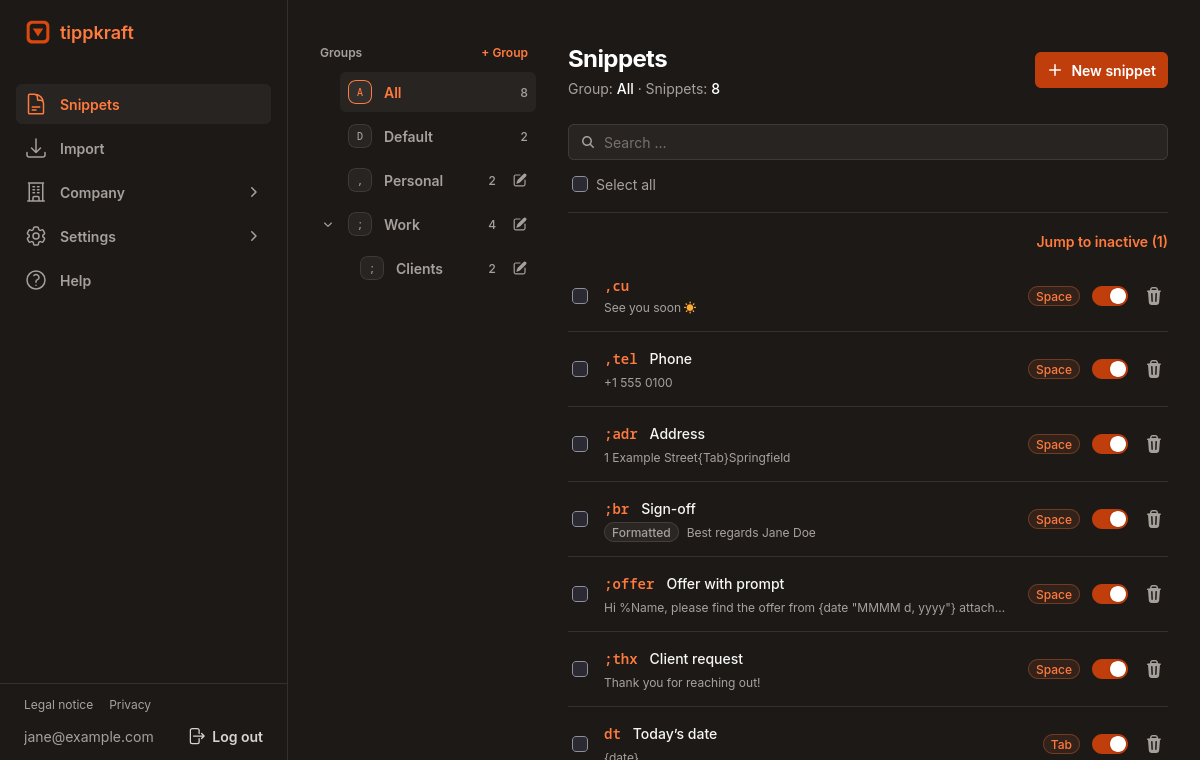
Appearance
Snippets
A snippet is a piece of text you use again and again: your address, a sign-off, a standard answer to a customer, a phone number. Each snippet has an abbreviation. When you type the abbreviation, tippkraft replaces it with the snippet.
The snippet list
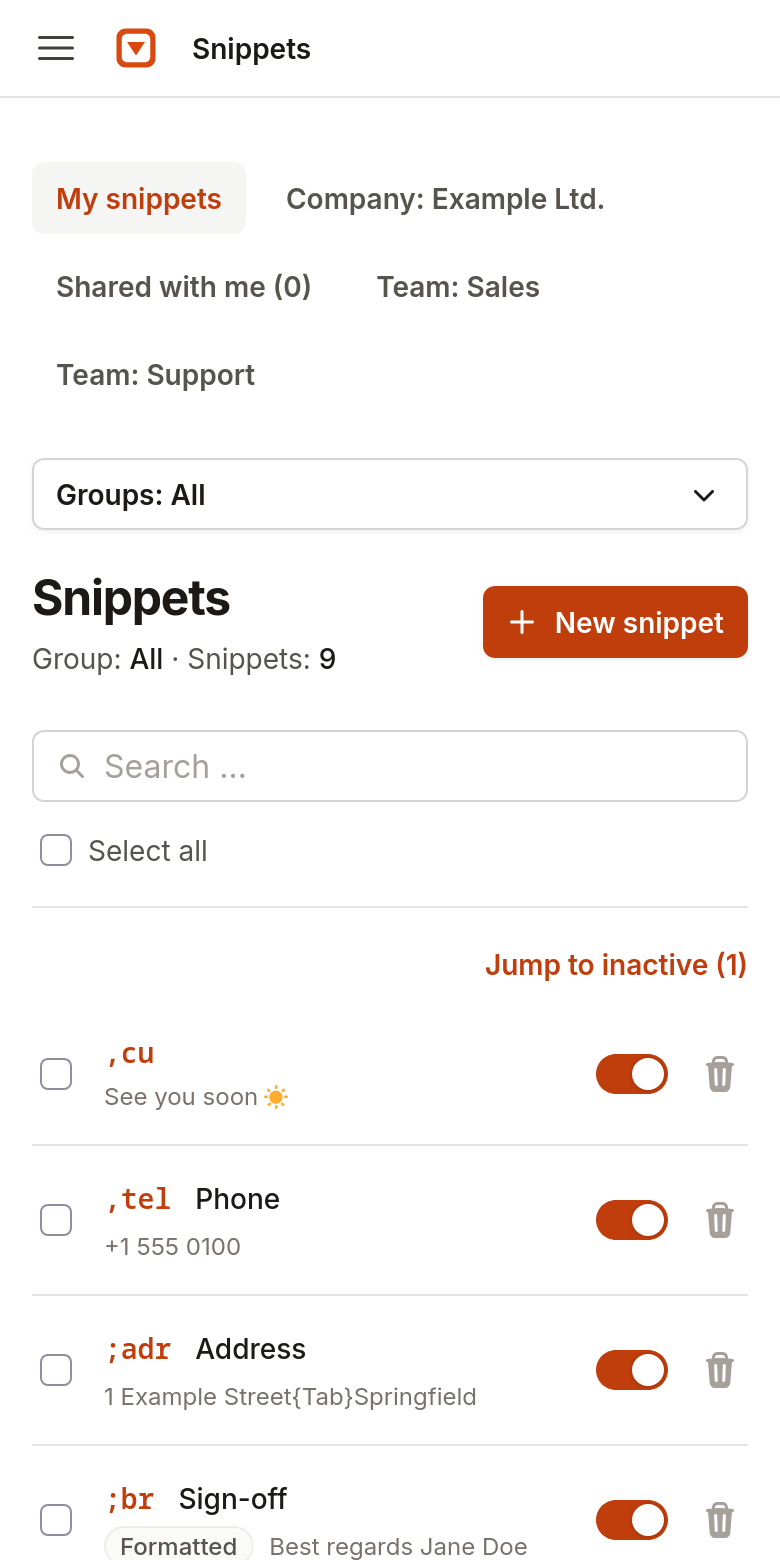
After signing in you see all your snippets. Your groups are in a column to the left of the list. On a phone, tap Groups above the list to show them.
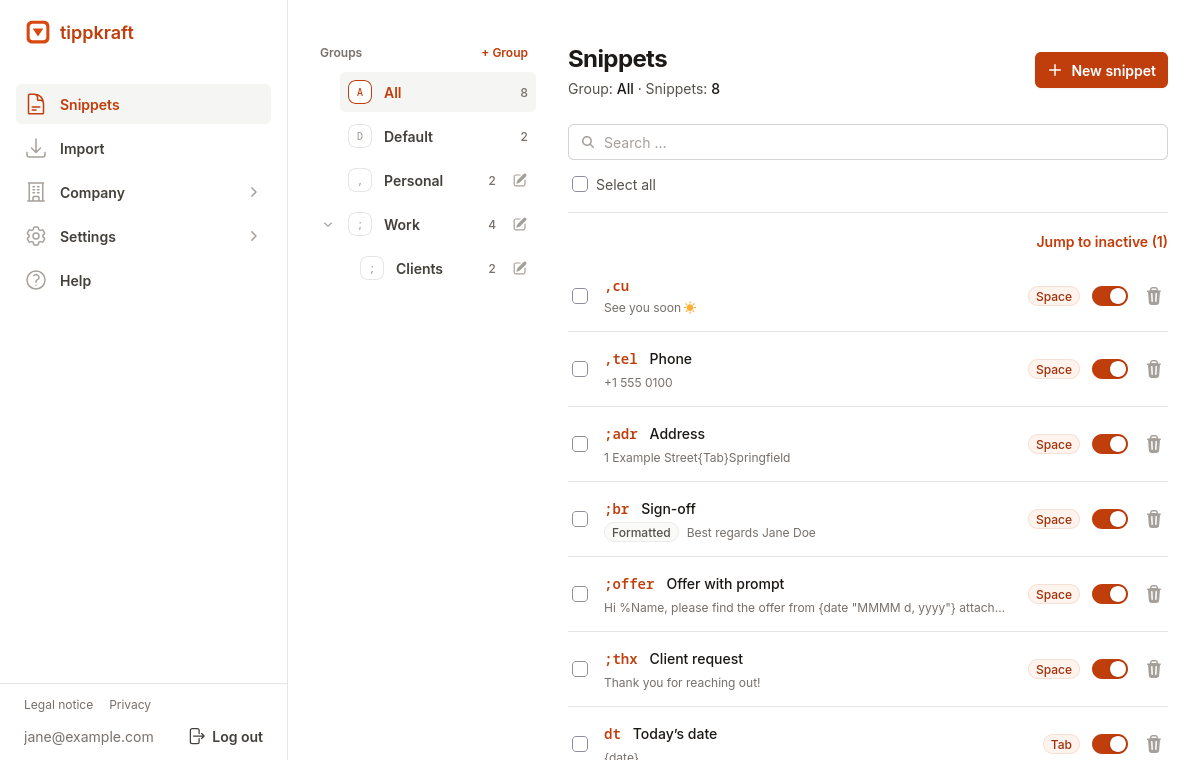
Each row shows:
- the abbreviation in orange, for example
;br, - the label, a short description you can give the snippet,
- the beginning of the text,
- the trigger (for example "Space", see below),
- a switch to turn the snippet on or off,
- a bin icon to delete it.
The search field above the list looks through abbreviations, labels and texts at the same time.
Snippets that are switched off are collected at the end of the list under Inactive. If there are any, a link Jump to inactive above the list takes you straight there.
Creating a snippet
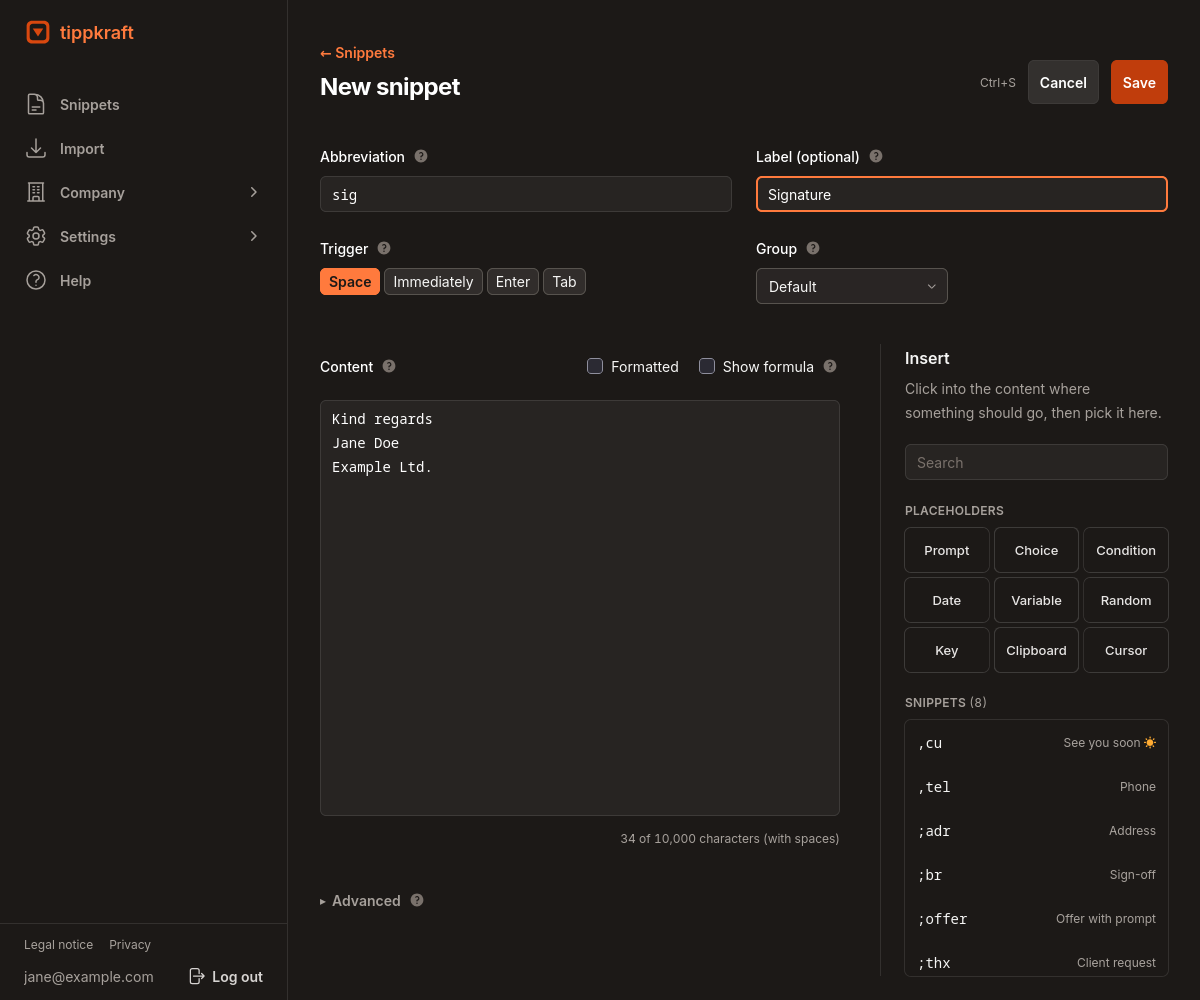
Click New snippet. The snippet opens on its own page. At the top are the abbreviation, the label, the trigger and the group. Below is the content, and on the right the Insert panel:
Step by step
- Click New snippet above the list. If a group is selected in the list, the new snippet goes into that group.
- Under Abbreviation, type what you want to type later to call up the snippet, for example
;adr. - Under Label (optional), add a short description, for example
Address. - Under Trigger, choose when the snippet should expand. Space is the most common choice.
- Under Group, pick a group if you like.
- Click into Content and type the text.
- To add a name prompt, a date or another snippet, click into the content where it should go and pick it in the Insert panel on the right. See Placeholders.
- Click Save or press Ctrl+S. tippkraft takes you back to the list.
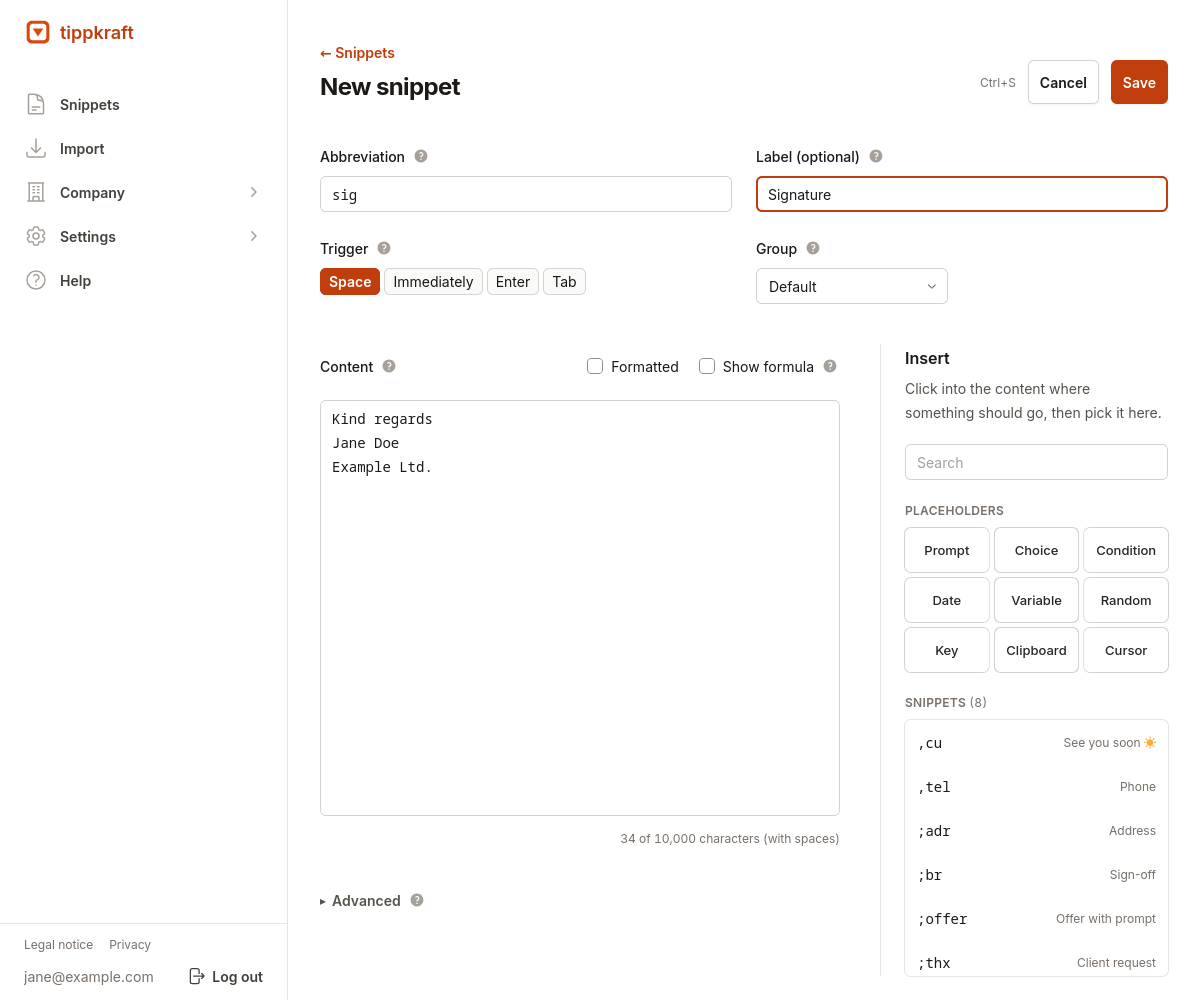
Abbreviation
What you type to call up the snippet. Pick something you would never type by accident. Many people start their abbreviations with a character like ; or ,, for example ;adr instead of adr. That way "address" in a normal sentence never turns into your full address.
Label
An optional short description right below the abbreviation. It helps you find snippets later and appears in the snippet overview on your computer.
Content
The text that appears. It can be several lines long. The counter below it shows how many characters you have used. Every character counts, including spaces and line breaks.
Above the field are two boxes: Formatted turns on formatted text with bold, italic, links and lists. Show formula shows the snippet as text in the script notation instead of labels.
Insert snippet
Click into the content where the other snippet should go. The Insert panel on the right lists your other snippets under Snippets. Type a few letters of an abbreviation or label into the search field to find one, then click it to insert a reference at the cursor. When the snippet expands, the reference is replaced by the other snippet's text. That way you can, for example, put your address into several sign-offs and only ever change it in one place. If you later change the abbreviation of the inserted snippet, or the prefix of its group, tippkraft updates the references in all your snippets. A snippet that other snippets insert can't be deleted until you remove those references.
Placeholders
The Insert panel on the right also lists all Placeholders (Prompt, Choice, Condition, Date, Variable, Random, Key, Clipboard, Cursor). They insert codes that make a snippet do more than paste text: ask for a name, offer a choice, insert today's date or press a key. Each one is explained on the page Placeholders.
Trigger
When the snippet should expand, for example after a space or right away. See Triggers below.
Group
Which group the snippet belongs to. Click the field and pick the group, or type a few letters to find it. If the group has a prefix, it is shown in front of the abbreviation. See Groups below.
Advanced
Three more options for how the abbreviation is recognized. See Advanced options below.
History
Every time you save a change, tippkraft keeps the previous version of the snippet: abbreviation, label, content, trigger and the advanced options. The History section lists the last 5 versions, newest first.
Click Restore next to a version to load it into the editor. Nothing changes until you click Save, and the version you replace is kept in the history too.
A snippet keeps at most 5 versions. When all 5 are used, tippkraft asks before saving, because the oldest version is then replaced by the newest one. Deleting a snippet also deletes its history. Changes made automatically, such as updating references after you rename another snippet, don't create a version.
Click Save or press Ctrl+S. tippkraft then takes you back to the list, straight into the snippet's group if it has one, so you can add the next snippet there. If you click Cancel or leave the page with unsaved changes, tippkraft asks whether to discard them.
Triggers
The trigger decides when tippkraft replaces the abbreviation:
| Trigger | What happens |
|---|---|
| Space | You type the abbreviation and then a space. The space stays after the text. This is the most common choice. |
| Immediately | The text appears as soon as you have typed the last character of the abbreviation. Good for abbreviations you never type by accident. |
| Enter | You type the abbreviation and press Enter. |
| Tab | You type the abbreviation and press Tab. |
Advanced options
Click Advanced below the content to see three more options:
Word boundary : On by default. The abbreviation only counts if it stands on its own, not in the middle of a word. With it, adr inside "padre" does nothing.
Case sensitive : Off by default. When on, the abbreviation only reacts if you type it exactly as saved: Adr then fires for Adr, but not for adr or ADR. Either way, Adr and adr count as the same abbreviation, so you can't save both.
Adopt capitalization : On by default, only works while Case sensitive is off. If you type the abbreviation with a capital first letter, like Adr, the text also starts with a capital letter. If you type it all in capitals, like ADR, the text stays exactly as saved.
Groups
Groups keep your snippets tidy, for example "Work" and "Personal". Groups can also contain other groups, up to four levels deep, for example "Work › Clients".
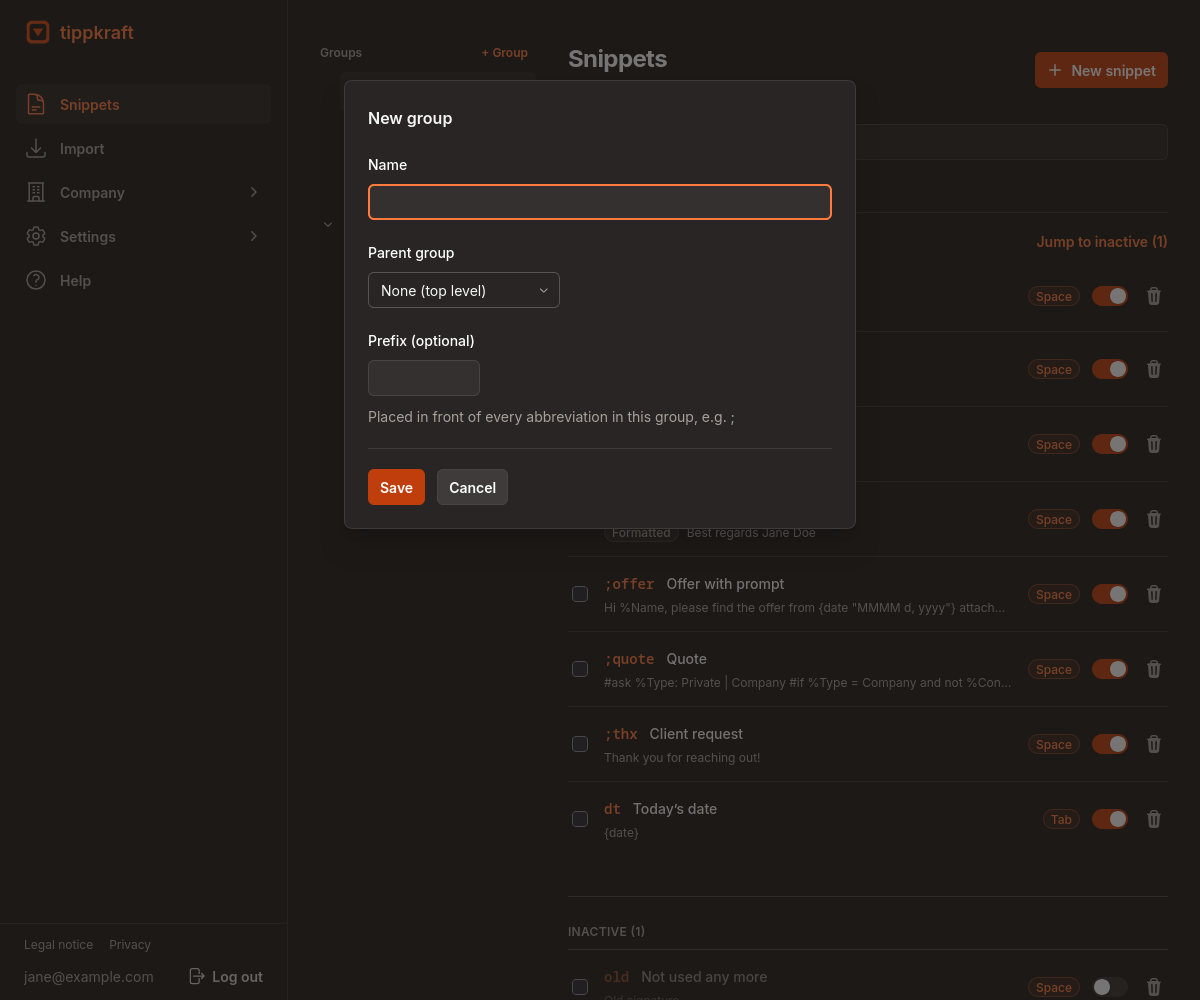
Creating a group, step by step
- In the left column of the snippet list, click + Group.
- Enter a Name, for example
Work. - If it should sit inside another group, pick that group under Parent group.
- If you like, enter a Prefix, for example
;(see below). - Click Save. The group appears in the left column.
Moving snippets into a group: open the snippet and pick the group under Group, or tick several snippets in the list and choose the group in the bar that appears.
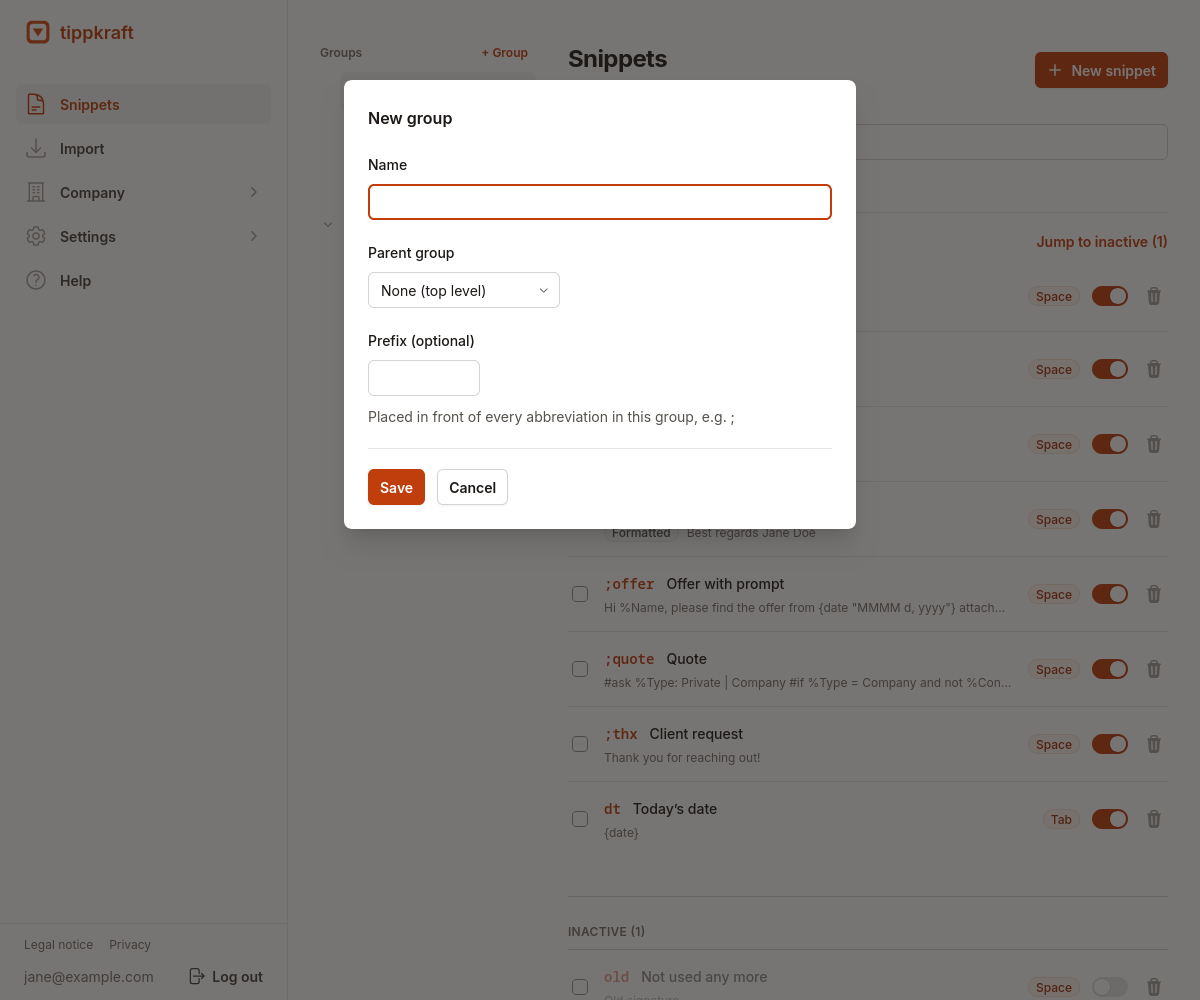
A group can have a prefix. tippkraft puts it in front of every abbreviation in that group. If the group "Work" has the prefix ;, the snippet adr in that group is called up with ;adr. If you change the prefix later, all abbreviations in the group change with it, and references to them in other snippets are updated too.
Each group has a switch too. Turning a group off turns off all snippets in it at once, for example your work snippets on holiday.
To work on many snippets at once, tick the boxes in front of them. A bar appears where you can move them to another group, change their trigger, turn them on or off or delete them.
Turning snippets on and off
The switch on the right of each row turns a snippet on or off. A switched-off snippet stays saved but does nothing on your computer. You find it under Inactive at the end of the list.
On your phone
The web app also works on a phone, so you can add or fix a snippet on the go. Your computers get the change right away.